

Best AI for Automatic Video Color Grading (Cinema Look 2026)
⚡ Quick Answer
Discover the best AI color grading tools for achieving a cinema look automatically in 2026. Compare DaVinci Resolve AI, Colourlab, Topaz, and more for filmmakers.
Get more content like this on Telegram!
Daily AI tips, notes & resources — free
Advertisement
Color grading is one of those crafts that looks effortless when done well and impossible when you're first learning it. I spent years as an assistant editor watching senior colorists work and genuinely not understanding how they knew what adjustments would achieve the look they were after. It felt more intuitive than technical — an artistic skill as much as a technical one.
AI color grading tools are changing that dynamic in ways that are both impressive and occasionally oversimplified in the marketing. The honest answer is that AI grading is transformative for certain parts of the workflow and still relatively limited for others. Understanding which is which will help you integrate these tools intelligently rather than discovering their limits mid-project.
This guide covers the five major AI color grading tools: DaVinci Resolve's AI features, Adobe Lumetri's AI color tools, Topaz Video AI, Colourlab.ai, and FilmConvert. I'll also walk through the LOG vs SLOG grading workflow and explain exactly where AI fits within it.
What AI Color Grading Actually Automates
The framing of "automatic color grading" in marketing materials covers a much wider range of capability than one phrase implies. When evaluating any AI color tool, it helps to be specific about which problems it's solving.
Scene-by-scene exposure balancing: Analyzing clips and applying basic exposure corrections to bring them to a common starting point. This is tedious manual work that AI does reliably well.
White balance correction: Detecting the color temperature of a scene and correcting to neutral. AI handles this with high accuracy on most interior and exterior lighting conditions.
Reference matching (shot-to-shot consistency): Analyzing a reference image or clip and adjusting other clips to match it. This is one of AI's strongest use cases — Colourlab.ai is specifically built around this.
Look generation (creative grading): Applying a cinematic look — warm, cold, film-stock emulation, high contrast, desaturated. AI can apply predetermined looks competently, but generating novel creative looks still requires human direction.
Temporal consistency: Ensuring a single clip looks consistent throughout without color shifts as the shot progresses. AI handles this better than manual grading for subtle, continuous-light changes.
What AI doesn't do well: creating looks that serve narrative intent without being told what that intent is. The AI doesn't know that this scene should feel menacing, that the protagonist's wardrobe should appear to desaturate as the story darkens, or that the final scene should visually echo the first. Those decisions require a human who understands the story.
The 5 Tools Compared
| Tool | LUT Quality | Reference Matching | GPU Required | Price | Best For |
|---|---|---|---|---|---|
| DaVinci Resolve AI | Excellent | Good | Recommended | Free/Studio $295 | Professional colorists |
| Adobe Lumetri AI | Good | Decent | No | CC subscription | Adobe workflow users |
| Topaz Video AI | Good (enhance focus) | N/A | Yes (NVIDIA/AMD) | $199/year | Resolution + grain |
| Colourlab.ai | Excellent | Best in class | Yes | $199/year | Reference-based matching |
| FilmConvert | Excellent (film stock) | Film reference | No | $99–$199 | Film emulation |
DaVinci Resolve: The Professional Standard
DaVinci Resolve has been the professional color grading standard for a decade, and its AI features — concentrated in the Color AI panel — represent the most comprehensive set of AI-assisted tools for colorists.
DaVinci's AI Color Features
The Color Warper with AI assists uses machine learning to analyze your footage and suggest initial corrections. It's not fully automatic — it provides intelligent starting points that you refine — which is by design. The tool is built for professional colorists who want intelligent assistance, not replacement.
The Magic Mask feature is AI-powered and genuinely impressive: it automatically creates a mask for a specific subject in your footage — a person, a vehicle, a sky region — without any manual rotoscoping. This allows applying grade adjustments to one element (like boosting skin tone saturation) without affecting the rest of the frame.
Noise reduction in DaVinci uses a temporal AI model that analyzes motion across frames to distinguish actual detail from noise. The result is cleaner than traditional noise reduction at equivalent strength, better preserving fine texture and edge detail. For LOG footage shot at high ISO in low light, this can transform unusable material into workable footage.
The Color Science Advantage
DaVinci's primary advantage over all other tools in this comparison is its color science — the underlying mathematical model it uses to process color transformations. DaVinci's YRGB color space handles color transformations in a way that's closer to how human visual perception works, producing more natural-looking grades than tools working in standard RGB color spaces.
This difference matters most in highlights. When you boost exposure or apply a warm grade in DaVinci, highlights respond in a way that resembles how film responds. In less sophisticated tools, the same adjustment produces harsh, digital-looking clipping. It's subtle, but experienced viewers notice it.
The free version of DaVinci Resolve handles most of the AI features. DaVinci Resolve Studio ($295 one-time license) adds noise reduction processing beyond the free version's limits and remote rendering capability, which matters for professional production environments.
LOG Workflow in DaVinci
DaVinci's native support for LOG workflows from every major camera manufacturer — ARRI LogC, Sony S-Log2 and S-Log3, Blackmagic Film, Canon Log, Panasonic V-Log — makes it the right tool for any serious production pipeline. Apply the camera-specific Color Space Transform at the start of your grade to convert LOG to a working color space, grade in that space, and apply your output transform at the end. The AI tools work correctly within this workflow; some competing tools apply AI corrections before the LOG conversion step, which produces incorrect results.
Adobe Lumetri AI: Best for Premiere Pro Users
Adobe's AI color tools are integrated into Lumetri Color within Premiere Pro, making them the natural choice for editors already working in Adobe's ecosystem. The depth of AI capability is lower than DaVinci but the workflow integration is tighter.
Auto Color and Scene Detect
Lumetri's Auto Color feature analyzes your sequence and applies exposure, white balance, and basic contrast corrections clip-by-clip. The 2025 version is noticeably better than earlier iterations — it handles mixed lighting conditions more intelligently and is less likely to overcorrect a clip that was already well-exposed.
Scene Detect, combined with Auto Color, applies adjustments at the individual clip level rather than to the whole sequence, handling the common problem of footage shot under different lighting conditions within a single scene.
Reference Match
Lumetri's Reference Match (introduced in Premiere Pro 2025) allows you to drag a reference image or frame onto a target clip and have the AI match the color characteristics. The result quality is decent — it gets you 60–70% of the way to the reference in most cases — but it's less accurate than Colourlab.ai's reference matching, which is specifically optimized for this task.
For editors doing basic color work within Premiere without needing professional colorist-level precision, Lumetri AI is a practical workflow efficiency tool. For productions where color quality is a primary deliverable, DaVinci or Colourlab is the better choice.
Topaz Video AI: Best for Enhance and Grain
Topaz Video AI is a standalone tool focused primarily on video enhancement — upscaling, deinterlacing, motion interpolation, and noise reduction. Its color-related capability is grain management rather than traditional grading.
Where Topaz Fits in a Color Workflow
Topaz is not a color grading tool in the conventional sense. You won't be applying creative looks or matching shots in Topaz. Its value in a color workflow is in processing footage before grading — specifically, removing or reducing noise, restoring detail in compressed footage, and adding cinematic film grain after grading.
The grain removal capability is particularly relevant for LOG footage shot at high ISO. Applying grain removal before your color grade gives you cleaner source material for the AI grading tools and allows finer control over the final grain addition.
Topaz's film grain application (add grain post-grade) is one of its most popular features among colorists. Rather than applying a flat, digital-looking uniform grain, Topaz's AI grain model varies grain size, luminosity response, and temporal behavior to match the characteristics of specific film stocks.
Topaz is covered in more depth in our Topaz Video AI review for its broader video enhancement capabilities.
GPU Requirement
Topaz Video AI requires a capable GPU for reasonable processing speed. NVIDIA GeForce RTX series or AMD RX 6000 series minimum for practical use. On CPU alone, processing 10 seconds of 4K footage might take 3–5 minutes — workable for short clips, impractical for feature-length material.
Colourlab.ai: Best Reference Matching
Colourlab.ai is built around one specific capability: matching the color of your footage to a reference image, clip, or cinematic look as accurately as possible. It does this better than any other tool in this comparison.
How the Reference Matching Works
You provide Colourlab with a reference — a frame from a film you want to emulate, a brand color palette, a grade you achieved on a previous project, or an AI-generated target look. Colourlab analyzes the reference's color distribution, luminance response, and saturation characteristics, then applies a transformation to your footage that maps its color characteristics to the reference.
The quality of this matching is genuinely impressive for well-matched footage. The AI correctly identifies which elements of the reference to match (overall tone, shadow density, highlight saturation) versus which are scene-specific characteristics that shouldn't be transferred (a specific prop color, a practical light source).
Where reference matching has limits: very different scene types. Matching a warm, sunlit exterior to a cold, interior reference produces artificial-looking results because the underlying lighting conditions are incompatible. Colourlab handles lighting-compatible scene pairs well; it can't make outdoor beach footage match a winter interior grade without looking forced.
Pricing and Workflow
Colourlab integrates with DaVinci Resolve, Premiere Pro, and Final Cut Pro as a plugin. The $199/year price sits in the same range as Topaz. For colorists handling regular work where reference matching to client-approved looks is a standard requirement, Colourlab pays for itself quickly in time saved on match grading sessions.
FilmConvert: Best Film Stock Emulation
FilmConvert is the specialist choice for filmmakers who want their digital footage to look like specific film stocks — Kodak Vision3 500T, Fuji Eterna 500T, and dozens of other stocks with distinct grain structures, color responses, and characteristic looks.
Why Film Emulation Matters
Film stocks don't just add grain — they have specific color response curves, grain structures, shadow density characteristics, and color rendition properties that collectively produce a look that digital cameras don't naturally replicate. The warm shadow rolloff of Kodak Vision3, the slightly green cast of Fuji Eterna, the high contrast of Kodak 5293 — these characteristics are embedded in FilmConvert's emulation models.
For narrative filmmakers, documentary makers, and commercial directors who want a cinematic quality distinct from the clinical look of modern digital cameras, film emulation is often the most direct path to that goal.
Film Emulation in LOG Workflow
FilmConvert is specifically designed to work with LOG footage. The workflow: shoot in your camera's LOG profile, apply the correct camera profile in FilmConvert (it has profiles for 60+ cameras), select your target film stock, and adjust exposure and grain strength. The tool handles the LOG-to-film color space transformation, producing results that more accurately emulate how film stock would respond to the scene than generic LUT approaches.
The AI component in FilmConvert is primarily in the grain rendering — a temporal AI model that generates grain patterns with the temporal characteristics of real film (grain that fluctuates frame-to-frame in ways that match how film grain actually looks in motion).
LOG vs SLOG Grading Workflow With AI
A common point of confusion among emerging filmmakers: the difference between LOG formats and how AI grading tools interact with them. Here's a clear explanation.
Why LOG Exists
Modern camera sensors capture significantly more dynamic range than the Rec.709 standard used for display. A Sony Alpha camera recording S-Log3 captures roughly 14 stops of dynamic range; your monitor displays about 6 stops. Shooting in LOG preserves all that captured range by distributing it across the camera's bit depth more evenly.
The result: LOG footage looks flat and desaturated when viewed on a normal monitor. That's correct and intentional — the colorist applies a transformation to convert the LOG footage into a viewable representation and then grades within that representation.
SLOG2 vs SLOG3 vs LOG-C: What Matters for AI Grading
Sony's S-Log2 and S-Log3 are different curves encoding different dynamic range distributions. S-Log3 encodes more shadow detail but clips highlights slightly sooner. S-Log2 is a simpler curve that some earlier AI grading tools handled better.
AI grading tools need to know which LOG format your footage is in to apply correct transformations. DaVinci, Colourlab, and FilmConvert all have camera-specific profiles that handle this correctly. Adobe Lumetri's Auto Color can sometimes apply corrections without LOG conversion, which produces incorrect color science results — the AI grading is operating on a flat, desaturated image rather than a properly decoded image.
The correct workflow for any AI color tool with LOG footage:
- Apply the correct Input Color Space Transform (DaVinci) or Camera Profile (FilmConvert) to convert LOG to a working space
- Apply AI color analysis and corrections within the working space
- Apply output transform for delivery (Rec.709 for broadcast/web, DCI-P3 for cinema)
Applying AI grading directly to undecoded LOG footage produces results that are technically incorrect, even if they sometimes look acceptable.
Building Your AI Color Grading Workflow
Here's how to structure an efficient workflow using AI color tools across a typical production pipeline.
Stage 1: Initial scene balancing (DaVinci AI or Lumetri Auto) On ingesting your footage, apply AI scene balancing to bring clips to a neutral starting point. This handles the mechanical work of exposure and white balance correction that would otherwise consume significant manual time.
Stage 2: Reference-based look development (Colourlab) With a client-approved reference image or a cinematic target, use Colourlab's reference matching to apply the base look across your project. This gets you to 60–70% of the final grade in a fraction of the manual grading time.
Stage 3: Manual refinement (DaVinci) Apply manual corrections for shots where the AI result doesn't meet your standard — complex mixed-lighting scenes, scenes with specific narrative color requirements, and any shots where technical accuracy is critical (like skin tones in close-up).
Stage 4: Film look and grain (FilmConvert or Topaz) Apply film stock emulation and grain as a final layer, after all corrections and creative grading are complete. Film grain added before grading gets processed and potentially modified by subsequent adjustments; grain added last sits on top of the finished grade as intended.
For creators working on video projects where color grading quality matters alongside overall production quality, our Runway Gen-2 tutorial covers how AI-generated video content fits into graded production pipelines.
Choosing the Right Tool
Professional colorists and post-production facilities: DaVinci Resolve with AI features is the foundation. Add Colourlab.ai for reference-based matching and FilmConvert for film emulation as specialized plugins.
Independent filmmakers and documentary makers: DaVinci Resolve free version handles most needs. FilmConvert for the cinema look. These two tools together cover 90% of independent production grading requirements.
Editors in Adobe Premiere Pro: Lumetri AI for efficiency on standard projects. Upgrade to Colourlab when reference matching accuracy is critical.
Video producers working with compressed or suboptimal footage: Topaz Video AI for enhancement before grading, then DaVinci or Lumetri for the grade itself.
For filmmakers also interested in AI-assisted video enhancement beyond color — upscaling, frame interpolation, restoration — our Topaz Video AI review covers those adjacent capabilities.
Conclusion
AI color grading tools have made genuine, measurable improvements to the efficiency of professional color workflows — not by replacing skilled colorists, but by automating the tedious technical foundation work so colorists can focus on creative decisions.
For independent filmmakers, the practical implication is that professional-quality color grading is now accessible without either a colorist budget or years of technical training. DaVinci Resolve's free version with AI features, combined with FilmConvert for film emulation, gives you a workflow that produces results previously requiring specialized expertise and expensive hardware.
The ceiling is still set by human creativity and narrative understanding. AI tools can match a reference look and balance a scene, but they can't feel that a scene needs a slightly colder palette to reflect the character's emotional state, or that the shadow lift should be raised 2% to give the scene more hope. Those decisions still come from the filmmaker's or colorist's human understanding of the story.
Use the AI to handle the technical foundation. Apply your creative intent on top. The combination is more efficient and more consistent than either approach alone.
Frequently Asked Questions
Can AI color grading replace a professional colorist?
For routine corrections on well-exposed footage, AI color grading handles scene-balancing, white point correction, and basic look matching at a level that was previously junior colorist work. Where professional colorists remain irreplaceable: subtle emotional storytelling through color, complex scene-to-scene continuity across challenging lighting conditions, client communication about look development, and any grade requiring nuanced judgment about what the director intended. Think of current AI grading as handling the technical foundation so colorists can focus on the creative decisions.
What's the difference between color correction and color grading?
Color correction is the technical step: adjusting white balance, exposure, contrast, and saturation to make footage look neutral and correct — the way your eye would see the scene in person. Color grading is the creative step: applying a specific look or mood that serves the story — warmer skin tones, desaturated backgrounds, lifted shadows, or a specific film stock character. AI tools are better at color correction (objective, analyzable targets) than color grading (subjective, story-dependent choices).
Do I need to shoot in LOG format to use AI color grading tools?
No, but LOG footage produces significantly better AI grading results. LOG formats (LOG-C, S-Log2, S-Log3, V-Log) preserve more dynamic range in shadows and highlights than standard camera profiles, giving the grading tools more information to work with. AI grading on already-baked footage (Rec.709 or standard gamma profiles) is limited by the information that was captured — you can't recover detail that wasn't recorded. If your camera supports it, always record in LOG and let AI (or manual) grading apply the creative look afterward.
Advertisement
💬 DiscussionPowered by GitHub Discussions
Frequently Asked Questions

AiTechWorlds Team
✓ Verified WriterThe AiTechWorlds team is passionate about AI, technology, and education. We create high-quality, research-backed content to help you learn, grow, and succeed in the modern digital world.
Advertisement
Related Articles
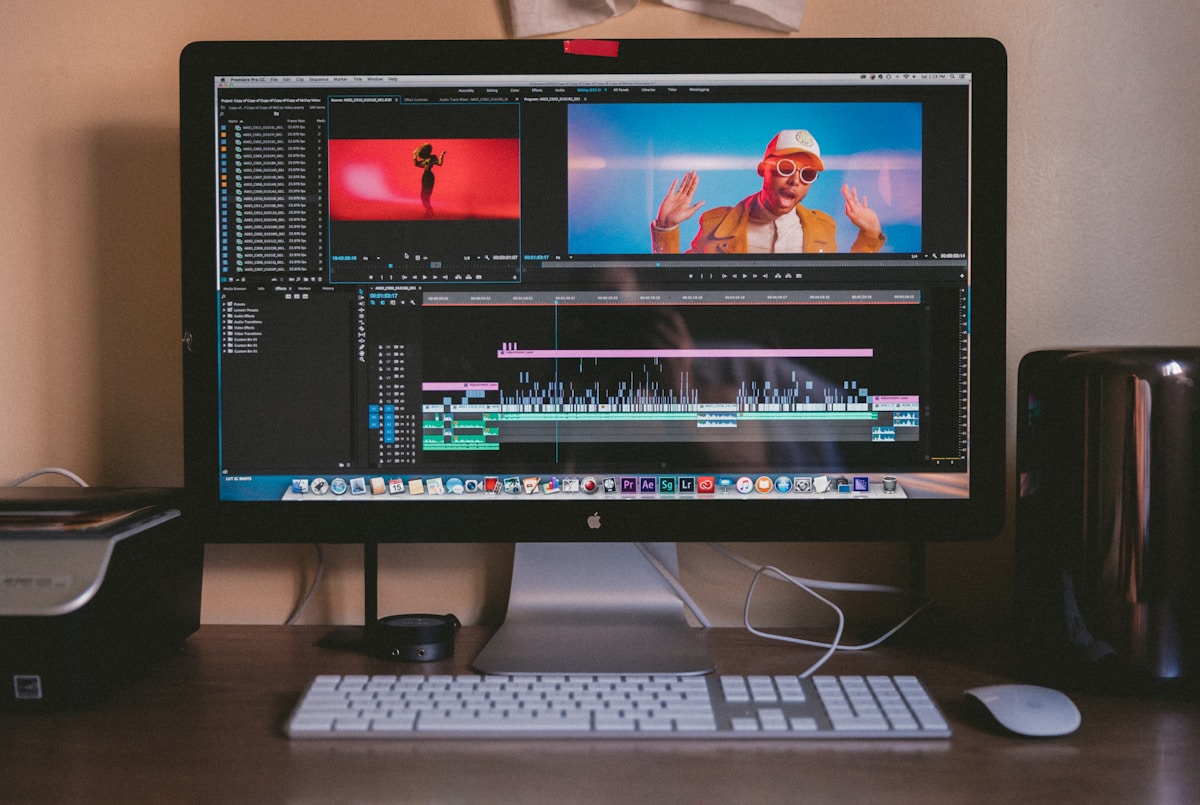
How AI-Generated Captions Boost Video Retention (With Tools)
AI caption generator video tools can increase watch time by up to 80% — here's the retention data and the tools that deliver it most reliably.
How to Generate AI Cinematic Trailers and Teasers (2026)
Learn how to use AI trailer generator tools to create cinematic teasers and promos with dramatic visuals, music sync, and 3-act structure — complete 2026 guide.

6 AI Tools to Generate Animated Explainer Videos (No Skill Needed)
Discover the best AI explainer video generator tools for 2026 — create animated explainers with voice sync and no design experience required.
6 AI Green Screen Removal Tools (No Physical Screen Needed)
Discover the best AI green screen removal tools that need no physical chroma key setup in 2026. Compare Runway, CapCut, Adobe, and more for VFX artists.