

5 AI Tools for Slow Motion With Optical Flow (2026)
⚡ Quick Answer
Discover the best AI optical flow slow mo tools in 2026 — how frame interpolation works, which tools handle 4K footage without artifacts, and real quality test results.
Get more content like this on Telegram!
Daily AI tips, notes & resources — free
Advertisement
Slow motion is one of the most evocative tools in visual storytelling. A moment stretched to three times its natural duration can carry emotional weight, reveal physical beauty invisible to the naked eye, and give an audience time to absorb details that would otherwise blur past. The challenge has always been that proper slow motion requires expensive high-frame-rate cameras — until AI changed the equation.
AI optical flow slow motion works by generating frames that don't exist in the original footage. Done well, it's genuinely impressive. Done poorly, it produces what videographers call "ghosting" — a smearing, liquid-looking artifact where fast-moving subjects seem to dissolve between positions. This guide covers how the underlying technology works, which tools produce the best results, and a practical quality comparison between the approaches.
Optical Flow Explained (Without the Math)
Imagine you have frame 1 and frame 3 of a video, and you need to create frame 2. A naive approach duplicates frame 1 — that produces the choppy, staccato effect of cheap slow motion. A slightly better approach blends frames 1 and 3 together (cross-dissolve interpolation) — that produces the blurry, ghosting effect of average slow motion.
Optical flow takes a different approach entirely. It looks at frame 1 and frame 3 and asks: "Where is each pixel in frame 1 going to end up in frame 3?" By calculating the velocity and direction of every pixel, it can predict where that pixel should be at the halfway point — which is frame 2. The generated frame isn't a copy or a blend; it's a prediction.
AI-based optical flow improves on traditional optical flow (which was purely mathematical) by using neural networks trained on millions of frame transitions. These models have learned patterns of how objects actually move — how a hand's fingers splay during a throw, how water droplets deform under air pressure, how fabric wrinkles travel during motion. The AI fills in frames using contextual understanding of physics and motion, not just pixel math.
The result is dramatically better in complex scenes where traditional optical flow fails. The limitation is that AI still makes prediction errors, and those errors show as artifacts — particularly when two objects overlap and the model has to guess what's behind the front object.
Comparison Table: AI Optical Flow Slow Motion Tools in 2026
| Tool | Interpolation Quality (1–10) | Artifacts on Fast Motion | GPU Required | Price | Best For |
|---|---|---|---|---|---|
| Topaz Video AI (Apollo/Chronos) | 9.5/10 | Low (Apollo model) | Recommended (NVIDIA/AMD/Apple) | $299/yr or $199 perpetual | Professional slow motion, archival |
| DAIN App | 7.5/10 | Moderate | Required (CUDA) | Free | Budget GPU users, experimenting |
| FILM-Net (Frame Interpolation) | 8/10 | Low–moderate | Recommended | Free (open source) | Technical users, batch processing |
| DaVinci Resolve Optical Flow | 8/10 | Moderate on complex | Not required (slower without) | Free | Integrated editing workflow |
| CapCut AI Slow Motion | 7/10 | Moderate | Not required (cloud) | Free | Quick social content, mobile use |
Topaz Video AI
Topaz Video AI sits at the top of this category for a reason. Their Apollo frame interpolation model — introduced in version 4.0 — specifically addresses the "fast action with overlapping motion" problem that plagued earlier models. The results on sports footage, action sequences, and fast-moving subjects are noticeably cleaner than anything else in this price range.
The Apollo model uses a different architecture than their earlier Chronos model. Chronos works better for smooth, predictable motion (landscapes, slow-moving subjects). Apollo handles the complex cases that Chronos smears. In practice, you'll want to test both on your specific footage.
We cover Topaz's broader feature set in our Topaz Video AI review — the slow motion capability is just one of several AI enhancement tools in the suite.
Processing speed is a real consideration. On an NVIDIA RTX 4080, a 2-minute 4K clip processes to 4x slow motion in roughly 25–35 minutes. On CPU only, expect 3–5 hours for the same job. If you're doing this at volume, GPU investment pays off quickly.
DAIN (Depth-Aware Video Frame INterpolation)
DAIN was a research breakthrough when it published in 2019, and it remains relevant as a free option for users with CUDA-capable GPUs. Unlike many frame interpolation models, DAIN uses depth estimation to understand scene geometry — objects at different depths from the camera are treated differently during interpolation, which reduces a specific category of artifact where background elements bleed through foreground subjects.
The DAIN App provides a GUI wrapper for the underlying model. Setup requires some technical comfort (you need appropriate GPU drivers and a compatible CUDA environment), but the interface itself is straightforward once configured.
For a free tool, the quality is genuinely impressive on moderate-complexity footage. Fast sports action and close-up detailed motion still show artifacts, but for nature footage, product shots, and slow-paced subjects, DAIN produces results that approach Topaz's quality at zero cost.
FILM-Net (Frame Interpolation for Large Motion)
FILM-Net is a Google Research project that specifically addresses the problem of large motion between frames — situations where subjects move so fast that consecutive frames barely overlap. This is the hardest case for any interpolation algorithm.
The model is open source and available on GitHub, which means it's free to use but requires comfort with Python environments and command-line tools. For technical users who need the best possible quality on extremely fast-motion footage — speed sports, ballistics footage, high-speed mechanical subjects — FILM-Net is worth the setup complexity.
In independent benchmarks, FILM-Net handles large-displacement motion better than DAIN and comparably to Topaz's Apollo model in extreme cases. For the technical video enthusiast willing to run it, it's a remarkable free tool.
DaVinci Resolve Optical Flow
DaVinci Resolve's built-in Retime Effects > Optical Flow option deserves more credit than it typically gets. For editors already working in Resolve, the ability to apply optical flow slow motion in the same environment where you're doing your color grade and editing — without exporting, processing in an external tool, and reimporting — is a real workflow advantage.
The quality sits between DAIN and Topaz for most footage. On the Smooth Cut and Optical Flow settings, smooth motion (camera moves, stable subjects) interpolates cleanly. High-speed chaotic action (boxing matches, basketball) produces noticeable artifacts on complex motion boundaries.
Resolve's most interesting optical flow feature for advanced users is the Speed Warp retime mode in Fusion, which offers more control over how the interpolation is applied — you can define the motion vectors manually for problem areas rather than relying entirely on automatic analysis.
CapCut AI Slow Motion
CapCut is the accessibility option in this category. Processing happens in the cloud, there's no GPU setup required, and the mobile app makes it genuinely usable without any desktop software. For creators who need quick slow-motion effects for Instagram Reels, TikTok, or YouTube Shorts, CapCut handles the job adequately.
The quality ceiling is lower than desktop tools — complex motion produces more artifacts, and there's a practical resolution limit on the free tier. We cover CapCut's AI capabilities more broadly in our CapCut AI features guide.
For casual use and social media content where audiences aren't scrutinizing artifacts at 1:1 zoom, CapCut works. For anything where quality is the priority, use a desktop tool.
4K 60fps vs. 1080p 240fps: Which Gives Better AI Slow Motion?
This is a genuine debate in the camera community and it's worth resolving clearly.
4K 60fps footage processed to 4x slow motion via AI:
- Source resolution: 3840×2160
- Output frame rate: 240fps effective (60 × 4)
- AI generates 3 new frames between every original frame
- Quality of generated frames: high (more source detail for AI to work with)
- Artifact risk: moderate (4x interpolation requires significant AI prediction)
1080p 240fps footage displayed at normal speed:
- Source resolution: 1920×1080
- Output frame rate: 240fps real (no interpolation needed)
- No AI generation required
- Quality: limited by 1080p resolution
- Artifact risk: zero (these are real captured frames)
My honest take: if your deliverable is full-screen 4K, shoot in 4K and use AI to create slow motion. The resolution advantage outweighs the interpolation artifacts for most subjects. If your deliverable is 1080p and your subject is extremely fast-moving (sports, action), shooting real 240fps at 1080p then upscaling to 4K (using Topaz's upscaling models) often produces better results than starting in 4K and doing heavy frame interpolation.
The ideal workflow if you have a camera capable of 4K 120fps: shoot at that rate and use AI for 2x or 4x further slow motion. Every factor of 2 reduction in the interpolation multiplier significantly reduces artifacts. 4K 120fps → 2x AI → 240fps effective is much cleaner than 4K 60fps → 4x AI → 240fps effective.
Shooting Practices That Improve AI Slow Motion Results
The AI does its best work when given clean source material. Here's what to prioritize in camera:
Maximize frame rate at your target quality. Whatever your camera's highest available frame rate at acceptable quality — use it. Even if you only plan 2x slow motion, the lower interpolation factor produces cleaner results.
Expose to the right. Noise in your footage confuses optical flow algorithms. The AI can't distinguish intentional motion from noise-induced pixel variation. Expose as brightly as possible without clipping highlights — you can pull down exposure in post, but you can't remove noise after the fact.
Stable shooting platform. Camera shake interacts badly with frame interpolation. Handheld footage with natural camera wobble sometimes produces artifacts where the background "swims" during slow motion playback. A tripod, monopod, or gimbal gives the AI clean reference points.
Subject contrast against background. When your subject has similar color and tone to its background, the AI's motion estimation has a harder time separating subject movement from background. High-contrast subjects (dark jacket on light background, brightly lit face against dim environment) interpolate cleanly.
Avoid mixed-motion scenes. If the main subject is moving slowly but there's fast-moving detail in the background (crowd, water, foliage in wind), the algorithm is solving two different motion problems simultaneously. Where possible, control your background during shooting.
Dealing With Common Artifacts
Even with excellent tools, artifacts appear on difficult footage. Here's how to address them:
Ghosting on fast edges: Reduce the slow motion factor. If 4x is producing ghosts, try 2x. The fewer intermediate frames the AI generates per original frame, the less speculation it has to do.
Background swimming: Apply a mask to the background region and reduce its slow motion amount — you can apply different time remap values to foreground and background in DaVinci Resolve, then composite them together.
Hair and fine detail smearing: This is one of the hardest problems in optical flow. Hair strands crossing each other are genuinely ambiguous motion — the AI can't always determine which strand is in front. Topaz's Apollo model handles this better than others. For extreme close-ups of hair in motion, accept that some smoothing will occur.
Strobing on regular patterns: Repetitive patterns (fabric weave, chain link fence, crowd seating) can produce a strobing effect as the AI oscillates its prediction. Adding a very slight Gaussian blur to these regions before interpolation often stabilizes the result.
Integrating Optical Flow Into Your Full AI Video Stack
Optical flow slow motion is rarely a standalone step — it's part of a broader post-production workflow. A typical high-quality pipeline might include:
- Shoot at maximum frame rate → Apply optical flow slow motion (Topaz)
- Upscale to delivery resolution if needed (also Topaz or Topaz Video AI review covers both functions)
- Apply noise reduction to any remaining grain (free AI video denoiser for options here)
- Color grade in DaVinci Resolve
- Export at delivery specs
This combination of AI enhancement steps — frame interpolation, upscaling, denoising — stacked on a single piece of footage represents a genuinely transformative capability. Footage that would have been unusable five years ago (low-light, low-frame-rate, limited resolution) can now be recovered into broadcast-quality deliverables.
The time investment for a 2-minute clip through this full stack runs 1–3 hours of processing time on capable hardware. For a short film or music video, that's entirely manageable. For long-form content, you'd prioritize selectively — applying the full stack only to hero shots where quality is critical.
Conclusion
AI optical flow slow motion is one of the most practically valuable AI video tools available in 2026. It turns footage you already have into content that would require specialized high-speed camera equipment to capture natively. Topaz Video AI's Apollo model leads in quality for professional use. DaVinci Resolve's built-in tools handle most needs without additional cost. FILM-Net and DAIN serve technical users who want free, open-source options.
The keys to great results are clean source footage, appropriate frame rate choices at the camera stage, and realistic expectations about which types of motion AI handles well versus where artifacts are unavoidable. With those factors managed, the quality available from these tools is genuinely impressive — and continues to improve with each model generation.
For more AI video enhancement tools, our Descript AI review covers AI-assisted editing, and the InVideo AI review walks through a full cloud-based AI production pipeline.
Advertisement
💬 DiscussionPowered by GitHub Discussions
Frequently Asked Questions

AiTechWorlds Team
✓ Verified WriterThe AiTechWorlds team is passionate about AI, technology, and education. We create high-quality, research-backed content to help you learn, grow, and succeed in the modern digital world.
Advertisement
Related Articles
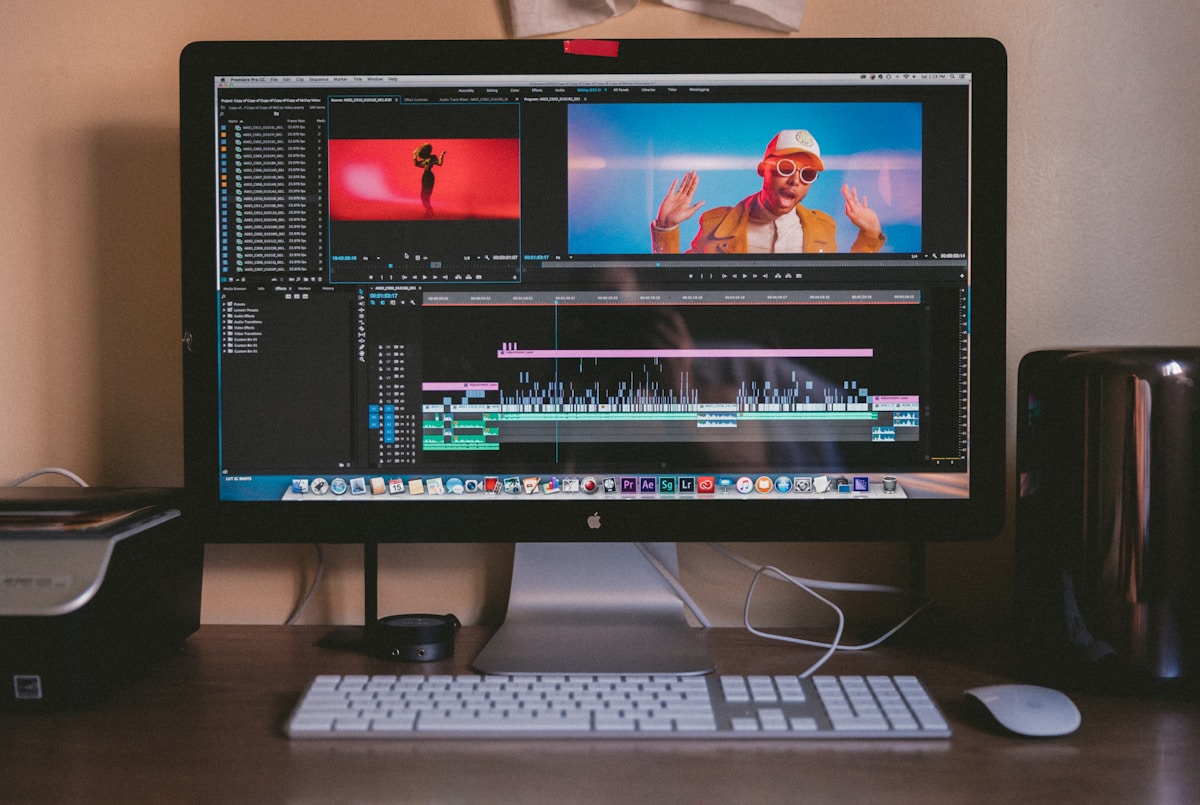
How AI-Generated Captions Boost Video Retention (With Tools)
AI caption generator video tools can increase watch time by up to 80% — here's the retention data and the tools that deliver it most reliably.
How to Generate AI Cinematic Trailers and Teasers (2026)
Learn how to use AI trailer generator tools to create cinematic teasers and promos with dramatic visuals, music sync, and 3-act structure — complete 2026 guide.

Best AI for Automatic Video Color Grading (Cinema Look 2026)
Discover the best AI color grading tools for achieving a cinema look automatically in 2026. Compare DaVinci Resolve AI, Colourlab, Topaz, and more for filmmakers.

6 AI Tools to Generate Animated Explainer Videos (No Skill Needed)
Discover the best AI explainer video generator tools for 2026 — create animated explainers with voice sync and no design experience required.