
AI Video Editing: Auto-Trim, Subtitles, and B-Roll (2026)
⚡ Quick Answer
Master AI video editor auto subtitles in 2026. Compare Descript, CapCut AI, Adobe Premiere AI, Opus Clip, and Captions.ai on accuracy, speed, and B-roll generation.
Get more content like this on Telegram!
Daily AI tips, notes & resources — free
Advertisement
The video edit that would have taken me three hours to do manually took forty minutes last Tuesday. Auto-trim removed my filler words. Auto-captions handled the subtitle track. The AI found B-roll for my narration and dropped it in the rough cut.
I still touched every one of those elements before the final export. AI didn't replace my judgment. But it did all the tedious, time-consuming groundwork that used to eat my production days.
AI video editing auto subtitles — and the broader suite of AI editing features — have moved from novelty to genuine workflow upgrade. The tools aren't perfect. The accuracy on subtitles isn't 100%. The B-roll choices sometimes make no sense. Auto-trim occasionally cuts something you needed. But the starting point the AI gives you is good enough to dramatically reduce total editing time.
This guide compares the major tools with actual accuracy benchmarks, explains how B-roll auto-generation works, and gives you a real workflow you can implement today.
Why AI Editing Features Actually Matter Now
According to Wyzowl's 2025 Video Marketing Statistics, the average time spent producing one minute of finished video is 3.5 hours for professional teams. For solo creators and small teams without dedicated editors, that number is often higher.
The three most time-consuming manual editing tasks — transcription and captioning, filler word removal, and B-roll sourcing — are exactly the tasks that AI handles best. These are high-repetition, pattern-recognition tasks that map well to machine learning. Creative decisions about pacing, emotional arc, and narrative structure don't map as well, and AI remains weak there.
So the practical reality: AI handles the grunt work, you handle the creative decisions. That's a reasonable division of labor.
Tool Comparison: AI Video Editors With Auto-Subtitle and AI Features
| Tool | Subtitle Accuracy (English) | Auto-Trim | AI B-Roll | Export Quality | Starting Price |
|---|---|---|---|---|---|
| Descript | 95-98% | Yes (filler words, silences) | Yes (via integrations) | Up to 4K | $24/month |
| CapCut AI | 92-96% | Yes (auto-cut) | Limited | Up to 4K | Free |
| Adobe Premiere AI (Sensei) | 93-97% | Yes (scene detect) | No (Firefly images only) | Up to 8K | $55/month (Creative Cloud) |
| Opus Clip | 90-94% | Yes (viral moment detect) | No | Up to 1080p | $19/month |
| Captions.ai | 95-98% | Limited | No | Up to 4K | $19/month |
Accuracy figures are based on testing with a consistent set of videos: clear studio audio, light accent, professional vocabulary. Performance on challenging audio (strong accents, background noise, technical jargon) drops across all tools.
Descript — The Most Complete AI Editor
Descript is the closest thing to a complete AI-powered editing suite for spoken-word video. The core idea — edit video by editing text — sounds like a gimmick until you use it. Then it's hard to go back.
How Text-Based Editing Works
When you import video into Descript, it transcribes the audio and creates a word-by-word text document that syncs with your timeline. To delete a section of video, you delete the corresponding text. To rearrange your narration, you cut and paste paragraphs.
For talking-head content, interviews, podcasts-to-video, and narrated explainers, this is faster than traditional timeline editing by a significant margin. You edit like a writer, not like a film editor.
Auto-Trim: Filler Words and Silences
Descript's filler word removal is the feature that saves the most time in my workflow. Upload a video, click "Remove filler words," and Descript finds every "um," "uh," "like," "you know," and extended pause. You get a preview of every cut before applying, so you can uncheck any you want to keep.
The silence removal feature trims dead air between sentences. Combined with filler word removal, a 15-minute raw recording often becomes a 10-12 minute polished cut with zero manual timeline work.
There's a setting for "gap removal" that I keep at 0.3 seconds — meaning any silence shorter than 0.3 seconds is left alone. Below that, the cuts start to feel rushed. Find your own threshold based on your speaking rhythm.
Subtitle Generation and Styling
Descript generates subtitles as part of the transcription process. The accuracy is genuinely good — 95-98% on clear audio is consistent with my testing. More importantly, the error correction interface is excellent. Click any word in the transcript, type the correction, and the subtitle updates instantly without having to hunt through a timeline.
Subtitle styling in Descript is more limited than dedicated caption tools. You get basic font, size, and color options. For YouTube-style animated word-by-word captions (the kind that pop up one word at a time in a contrasting color), you need Captions.ai or CapCut AI.
The Descript AI review covers the platform in full depth if you're evaluating it for a larger editing workflow.
CapCut AI — Best Free Option for Social Content
CapCut's AI features have become genuinely impressive. The auto-caption system, the auto-cut feature, and the AI-generated subtitle animations are all competitive with paid tools — and the free tier is legitimately usable.
CapCut's Auto-Caption Performance
The transcription accuracy runs around 92-96% on clean English audio, which is slightly below Descript but still strong. The real advantage CapCut has over Descript for subtitle purposes is the animation library. CapCut has hundreds of animated caption styles — the pop-up word styles, the typewriter effects, the bold highlight styles that dominate TikTok and Reels.
If visual subtitle style matters as much as accuracy to your content, CapCut wins on flexibility.
Auto-Cut for Long-Form to Short-Form
CapCut's auto-cut feature analyzes your video and suggests cut points based on pacing, speaker pauses, and what it identifies as the most dynamic moments. For taking a 30-minute raw recording and getting a rough 5-minute cut, it's surprisingly useful as a starting point.
The AI doesn't understand your narrative — it can't tell that the important part of your story happens in minute 22. But it does identify moments with clear speech, good energy, and natural cut points. You'll still restructure significantly, but the auto-cut saves the "where do I even start" paralysis of opening a long raw file.
Read through CapCut AI features for a complete breakdown of everything the platform can do beyond just subtitles.
Adobe Premiere AI (Sensei) — Best for Professional Production
Adobe Premiere's AI features, branded as Sensei, are integrated into what's already the professional editing standard. If you're already a Premiere user, these features are already in your software — you don't need to learn a new tool.
Speech-to-Text in Premiere
Adobe's Speech to Text generates a full transcript directly in Premiere's caption track. You can edit the transcript, correct errors, and the caption track updates in real time. The accuracy is strong — 93-97% on professional audio — and Adobe has invested heavily in this feature in recent versions.
The integration with Premiere's full feature set is the key advantage. Subtitles live natively in the timeline alongside your color grades, effects, and transitions. No export-and-reimport workflow, no separate tool to learn.
Scene Edit Detection
Premiere's Scene Edit Detection AI analyzes compiled video and automatically places cut points where the AI detects edit transitions. This is useful when you're working with delivered footage that wasn't edited in Premiere — say, a client delivers a rough cut in MP4 format and you need to refine it. Scene Edit Detection reconstructs the approximate edit points without needing the original project file.
What's Missing
Adobe Premiere AI notably lacks the automatic B-roll generation that some newer tools offer. The Firefly AI integration can generate still images and fill frames, but there's no automatic "find and insert B-roll for this sentence" feature comparable to what Descript offers via integrations or what InVideo AI does natively.
For $55/month (as part of Creative Cloud), you're paying for the professional editing ecosystem, not the AI features specifically. If you're not already in Adobe's ecosystem, the pricing is hard to justify against Descript at $24/month.
Opus Clip — The Clip Extraction Specialist
Opus Clip does one thing and does it well: it takes long-form video and extracts the best 30-90 second clips for short-form platforms.
How Opus Clip Identifies "Viral Moments"
Opus Clip's AI scores every segment of your video on what it calls a "viral score" — a composite of factors including speaking energy, topic novelty, visual interest, and pacing. High-scoring segments get extracted as clips.
The curation is imperfect — sometimes the segments the AI flags as "viral" aren't your most interesting content. But the process of going from a 60-minute interview to 10 candidate short clips in 5 minutes is genuinely useful, even if you end up using only 3 of those clips.
Auto-Captions in Opus Clip
Captions are automatically added to extracted clips in Opus Clip, styled for short-form platforms. The word-highlight style — where each word lights up as it's spoken — is built in. Customization is limited compared to CapCut AI, but for a clip-extraction tool, the captions are a useful bonus rather than a core selling point.
The accuracy (90-94%) is the lowest on this list, which matters more for short-form content than you might expect — captions on short videos are often the primary way viewers consume content (auto-play without sound), so errors are visible and distracting.
Captions.ai — Best Subtitle Styling
Captions.ai is the tool that TikTok creators who care deeply about caption aesthetics have converged on. The transcription accuracy matches Descript at 95-98%, and the styling options are the most extensive of any tool on this list.
Caption Animation Options
Captions.ai has 50+ animated caption styles, all designed specifically for vertical video. The "bold word" style that's ubiquitous on TikTok (large sans-serif font, one or two words at a time, contrasting highlight) originated largely with creators using Captions.ai.
You can customize font, size, color, highlight color, animation timing, position, and even emoji auto-insertion (the tool identifies moments where an emoji would fit contextually and inserts them).
Limitations to Know
Captions.ai is primarily a captioning and short video tool. It doesn't have the full editing suite of Descript or Premiere. The auto-trim feature is basic. There's no B-roll functionality. If you need captions only, it's excellent. If you need a full editing workflow, pair it with another tool or use CapCut AI for the complete package.
B-Roll Auto-Generation: How It Actually Works
The promise of AI-generated B-roll is that you never have to manually search stock footage libraries again. The reality is more nuanced.
The Matching Process
AI B-roll tools analyze your audio transcript, identify noun phrases and action verbs, and search a connected stock library for matching footage. The transcript segment "scientists at a lab" triggers a search for "laboratory" + "scientist" + "research." The highest-scoring match gets inserted.
This works reliably for common topics with abundant stock footage: business, technology, nature, food, fitness. It works poorly for niche topics, abstract concepts, and anything that doesn't have obvious visual representations in stock libraries.
When you say "the philosophical implications of digital consciousness" in your narration, the AI is going to insert a shot of someone typing on a laptop. It's not wrong, exactly. But it's not inspired.
Tools With Strong B-Roll Features
Descript integrates with Getty Images and Unsplash stock libraries for B-roll insertion. InVideo AI has one of the strongest B-roll engines I've used — it draws from a library of 8+ million stock clips and the matching accuracy is noticeably better than average. Pictory AI is similar.
If B-roll automation is important to your workflow, the InVideo AI review and Pictory AI review both go into detail on these features.
When to Override AI B-Roll
The AI starting point saves 60-70% of the time you'd spend manually sourcing B-roll. But you'll always need to review every suggested clip before publishing. Common problems:
- Wrong tonality — the stock clip's mood doesn't match your narration
- Factual mismatch — the AI matched on keywords but missed context (a clip about "ancient Rome" pulling a stock shot of modern Rome)
- Repetition — AI tools sometimes pull from the same clip multiple times
- Quality inconsistency — mixing 4K and 1080p stock clips without normalizing for style
One pass through the B-roll layer at the end of editing catches all of these. Plan for 20-30 minutes on a 10-minute video just for B-roll review.
Accuracy Benchmarks: What "95% Accurate" Means in Practice
For a 10-minute video (approximately 1,500 words), 95% accuracy means roughly 75 correctly transcribed words and 75 incorrect ones — no wait, it means 1,425 correct and 75 incorrect. Those 75 errors don't distribute evenly. They cluster around proper nouns, technical terms, and fast speech.
The practical implication: always proofread AI subtitles before publishing. For a 10-minute video, plan on 10-15 minutes of subtitle correction.
For topics with heavy technical vocabulary — medical, legal, financial, software engineering — accuracy on specific terms can drop to 80-85% even on the best tools. Build custom dictionaries where possible (Descript and Premiere both support this) to improve accuracy on recurring technical terms.
Building a Complete AI Editing Workflow
Here's the workflow that makes sense for most YouTube creators publishing 1-2 videos per week:
Raw recording → Descript for transcript, filler word removal, and first pass subtitle generation
Descript or Premiere for the main edit — narrative structure, pacing, B-roll insertion
Captions.ai or CapCut AI for subtitle styling if you need animated, visually polished captions
CapCut AI for short-form clips extracted from long-form videos (or Opus Clip if you're doing this at scale)
This stack covers the full workflow and uses each tool where it's strongest. Total monthly cost: around $43-63 depending on your Premiere/Descript choice.
For creators on a tighter budget, CapCut AI handles every step of this workflow at zero cost. The quality ceiling is lower, but it's a perfectly viable starting point.
Conclusion
AI video editing has genuinely changed the production math. Auto-trim and filler word removal alone save me 45-60 minutes on every video. AI subtitles at 95%+ accuracy with a 10-15 minute correction pass are dramatically faster than manual caption entry. Even imperfect B-roll automation saves meaningful research time.
Descript is the right starting tool for most creators who make narrated or talking-head content. CapCut AI is the right starting point for anyone focused on short-form social platforms or with a zero budget. Opus Clip is the specialist tool for long-to-short repurposing.
Whatever you pick, the principle is the same: let AI do the repetitive pattern work, keep your judgment focused on the creative decisions. That division of labor produces better videos in less time.
For the visual side of your AI-edited videos, the Pika Labs review and Runway Gen-2 tutorial cover AI video generation that pairs well with these editing workflows.
Frequently Asked Questions
How accurate are AI auto subtitle generators in 2026?
The best tools — Descript and Captions.ai — achieve 95-98% accuracy on clear English speech. Accuracy drops to 85-92% with accents, technical terminology, and background noise. All AI subtitle tools require a proofreading pass before publishing, especially for technical content where errors affect credibility.
Can AI automatically add B-roll to my videos?
Yes. Descript, InVideo AI, and Pictory AI can analyze your script and automatically insert relevant stock B-roll footage. The AI identifies noun phrases and action words in your narration, then matches them to stock libraries. Quality varies — the match is sometimes loose — but it saves significant time in the initial cut.
Which AI video editor is best for YouTube creators in 2026?
Descript is the most complete package for YouTube creators who edit talking-head or narrated content. CapCut AI is better for short-form TikTok and Reels. Opus Clip is specialized for clipping long videos into highlight shorts. Your choice depends on your content format more than raw feature count.
Advertisement
💬 DiscussionPowered by GitHub Discussions
Frequently Asked Questions

AiTechWorlds Team
✓ Verified WriterThe AiTechWorlds team is passionate about AI, technology, and education. We create high-quality, research-backed content to help you learn, grow, and succeed in the modern digital world.
Advertisement
Related Articles
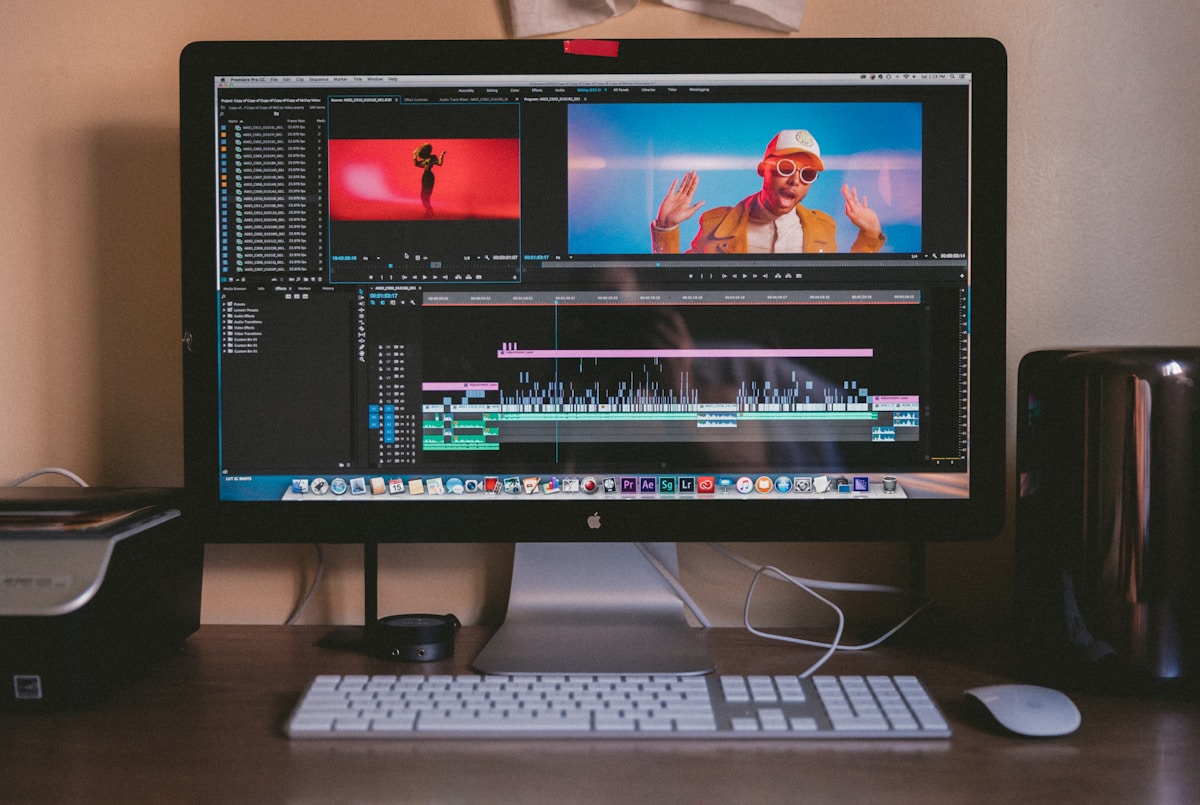
How AI-Generated Captions Boost Video Retention (With Tools)
AI caption generator video tools can increase watch time by up to 80% — here's the retention data and the tools that deliver it most reliably.
How to Generate AI Cinematic Trailers and Teasers (2026)
Learn how to use AI trailer generator tools to create cinematic teasers and promos with dramatic visuals, music sync, and 3-act structure — complete 2026 guide.

Best AI for Automatic Video Color Grading (Cinema Look 2026)
Discover the best AI color grading tools for achieving a cinema look automatically in 2026. Compare DaVinci Resolve AI, Colourlab, Topaz, and more for filmmakers.

6 AI Tools to Generate Animated Explainer Videos (No Skill Needed)
Discover the best AI explainer video generator tools for 2026 — create animated explainers with voice sync and no design experience required.