
How to Use AI to Remove Objects From Video (2026 Tools)
⚡ Quick Answer
Learn how AI video object removal tools work in 2026 — from Adobe Firefly to RunwayML — with real limitations, temporal consistency explained, and tool comparisons.
Get more content like this on Telegram!
Daily AI tips, notes & resources — free
Advertisement
There's a specific kind of frustration that every filmmaker knows: you've got a beautiful shot, perfect lighting, great performance — and there's a power line cutting across the sky, or someone's shoulder intruding from frame left, or a brand logo on a shirt that needs clearance you don't have. In the film era, fixing that meant expensive optical work. In the early digital era, it meant frame-by-frame rotoscoping that took days. Now AI object removal in video is genuinely fast and, in many cases, genuinely convincing.
I want to give you an honest picture of where this technology is in 2026. It's impressive. It's also limited in ways that matter. Understanding both sides helps you know when to reach for these tools and when to just reshoot.
How AI Video Object Removal Works
Video inpainting — the technical term for filling in areas where content has been removed — is fundamentally harder than photo inpainting. Photos are static; you need to generate plausible pixels for one moment in time. Video requires generating plausible pixels for dozens or hundreds of moments, and all those generated regions need to look like they belong to the same consistent scene.
The pipeline typically works like this:
Step 1: Object segmentation. The AI identifies every pixel belonging to the object you want to remove, in every frame. Modern segmentation models (mostly derived from Meta's SAM architecture) can propagate a rough mask you draw on frame 1 through the entire clip automatically, tracking the object as it moves.
Step 2: Background reconstruction. The AI fills in the "hole" left by the removed object using information from surrounding frames. If a microphone is hovering over someone's head, the algorithm can often reconstruct the background behind it by borrowing background pixels from frames where the microphone was in a different position.
Step 3: Temporal consistency enforcement. This is the hard part. The system must ensure the filled region doesn't flicker, shift color, or change texture between frames. Most current AI tools use attention mechanisms that look at multiple frames simultaneously — not just the current frame — to generate fills that match across time.
Why Temporal Consistency Is Genuinely Hard
The human eye is extraordinarily sensitive to inconsistencies across time. A slight change in texture between Frame 47 and Frame 48 that you'd never notice in a still photo becomes obvious as a flicker in video. This is why AI video object removal fails in ways that photo removal doesn't.
When an object moves across a complex, non-repeating background — stone walls, crowds of people, water, foliage — the AI has no reference for what the background "should" look like behind the moving object. It has to generate it. Generated textures that don't perfectly match the surrounding real texture will flicker. The more complex the background, the worse the consistency problem.
Clean, simple backgrounds (solid colors, smooth surfaces, sky) are where current AI tools genuinely excel. The results can be indistinguishable from never having had the object there.
The Tool Comparison
| Tool | Quality | Temporal Consistency | Free Option | Best For |
|---|---|---|---|---|
| Adobe Firefly Video | Excellent | Very Good | No (CC subscription) | Professional production |
| RunwayML Inpainting | Very Good | Good | 125 credits/month | Creative work |
| DaVinci Neural Engine | Good | Very Good | Yes (free version) | Local processing |
| CapCut AI Remove | Decent | Fair | Yes (with watermark) | Quick social clips |
| Unscreen | Basic | Poor | Limited free | Background only |
Adobe Firefly Video: The Professional Standard
Adobe integrated their Firefly generative AI directly into Premiere Pro's workflow in late 2024, and by 2026 it's become genuinely central to professional post-production. The Object Removal tool (under Generative Fill in the Effect Controls) lets you paint a mask and have Firefly reconstruct the background.
What Adobe does well is texture matching. Their training data is commercially licensed (a real differentiator for professional work where copyright on training data matters) and their models are trained specifically on the kinds of footage professionals shoot — not just internet video. The fill quality on outdoor scenes with natural lighting is particularly strong.
The limitations are honest: complex motion tracking requires you to manually adjust the mask on keyframes. Adobe provides tracking tools that follow the object automatically, but on fast-moving objects the mask drifts and needs correction. Budget time for cleanup.
Pricing: Firefly Video credits come with Creative Cloud subscriptions. Generative fill operations consume credits quickly on long clips. Adobe offers 2,000 generative credits per month on standard plans, which sounds like a lot until you're doing 10-second clips that each cost 100-200 credits.
RunwayML: The Creative Director's Tool
RunwayML has positioned themselves specifically for creative professionals rather than VFX specialists, and their inpainting tool reflects that philosophy. The interface is built for speed and iteration rather than precision control.
You draw a rough mask, click generate, and get results in a few minutes. The quality is genuinely good — better than most people expect from a tool this easy to use. Where RunwayML shines is on footage with relatively clean backgrounds, moderate object motion, and standard camera movement.
Their Gen-2 inpainting model specifically handles what they call "semantic removal" — it tries to understand what the object is and replace it with contextually appropriate content. Remove a fire hydrant from a sidewalk and it doesn't just fill with blurry pavement; it generates new pavement that matches the texture, grain, and lighting direction of the surrounding area.
The Runway Gen-2 tutorial covers the full range of RunwayML's capabilities beyond just object removal, which is worth reading if you're considering a subscription.
Free tier provides 125 credits monthly. A single 10-second object removal operation consumes roughly 10-15 credits depending on complexity. That's usable for occasional work but quickly becomes limiting for regular production.
RunwayML Inpainting: Workflow
- Upload your clip to RunwayML
- Navigate to the Inpainting tool
- Use the brush to paint over the object in the first frame
- Enable "Auto-Track" to propagate the mask through the clip
- Review the tracking on a few sample frames, adjust where it drifts
- Generate — results arrive in 2-4 minutes for 10-second clips
- Download and composite back into your editing timeline
The auto-tracking works well about 70% of the time without adjustment. Expect to spend a few minutes correcting masks on complex shots.
DaVinci Resolve: Free Local Processing
DaVinci Resolve 19's Magic Mask tool, combined with the Object Removal effect in Fusion, provides surprisingly capable object removal — and it runs completely locally on your hardware. No cloud, no credits, no subscription.
The Magic Mask uses a neural network to automatically segment objects you identify with a single stroke. Draw a line through a microphone and it selects the entire microphone. This is genuinely fast and usually accurate enough for a first pass.
Object removal in Resolve works by analyzing surrounding frames to reconstruct background. The algorithm is less sophisticated than Adobe or Runway's cloud-based models, but it handles the most common use cases — removing stationary or slowly-moving objects against relatively clean backgrounds — very well.
For complex motion or intricate backgrounds, Resolve's results are more likely to require manual cleanup. But since everything runs locally, you can iterate quickly without burning credits.
GPU requirements: Object removal in Resolve benefits significantly from GPU acceleration. An RTX 3060 or better produces results at reasonable speeds. CPU-only processing is possible but slow — a 30-second clip might take 20+ minutes.
CapCut: For Quick Social Content Removal
CapCut's "Smart Removal" feature handles basic object removal and is by far the easiest tool on this list to use. The results are acceptable for social media content where viewers are watching on phones and aren't looking for technical perfection.
Where CapCut works well: removing small, relatively static objects from the middle of a frame (logos, signs, isolated elements) when the background is simple. Where it fails: any complex background, fast-moving objects, or objects near the edges of frame where they interact with the border.
The CapCut AI features guide covers the full range of what CapCut can do — Smart Removal is just one piece of a fairly comprehensive AI toolkit that's all accessible from mobile.
Unscreen: A Narrow-Use Tool
Unscreen is specifically designed for background removal on videos — removing the entire background rather than individual objects within the frame. It's not really the same category as the other tools here, but it comes up in searches for "video object removal" frequently enough to address.
For its specific purpose — turning a clip filmed in front of a messy background into a clip with a clean/transparent background — Unscreen works reasonably well on footage with clear subject-background separation. Think talking head videos against a wall.
For removing objects within a scene while keeping everything else, Unscreen isn't designed for this and produces poor results. Don't use it for that purpose.
Realistic Limitations: What AI Object Removal Can't Handle Well
I want to be direct about this because the marketing materials from these tools tend to show only their best-case scenarios. Here's what genuinely doesn't work well:
Objects with complex motion. A person walking across a shot, a bird in flight, a swinging rope — anything with significant, non-linear motion is hard for current tracking to follow and hard for background reconstruction to handle frame-by-frame.
Objects against complex, moving backgrounds. Removing a power line from a shot of waving trees is genuinely challenging. The background behind the power line is different in every single frame, so the reconstruction algorithm can't use temporal information to stabilize. Results are often flickery and unconvincing.
Objects that take up a large portion of the frame. Removing an object that occupies more than 20-30% of the frame requires generating a lot of new content. The bigger the hole, the harder it is to fill convincingly.
Reflective surfaces. If a shiny object appears in a reflection — a mirror, a window, a puddle — removing the object from the frame doesn't remove it from its reflections. You'd need to mask and process the reflection separately.
Shadows. Most tools remove the object but leave the shadow, or handle the shadow separately with inconsistent quality. Shadow removal is a separate step that often requires manual work.
When to Reshoot Instead
AI object removal is a post-production tool, not a license to stop thinking about your shots on set. There are situations where "we'll fix it in post" is genuinely the wrong call:
- Object occupies more than 25% of frame area
- Complex background texture directly behind the object
- Object has reflections in the shot
- Clip is longer than 15-20 seconds (processing time and consistency issues compound)
- Professional deliverable where artifacts would be unacceptable
For these cases, if you can reshoot, reshoot. The 30 minutes you spend on a reshoot saves 3 hours of post-production cleanup that still might not look professional.
For productions using AI video tools more broadly, the Pika Labs review and Sora AI video articles are worth reading to understand where video AI is heading and how object removal fits into the larger landscape.
Professional Tips for Better Results
Several techniques consistently improve AI object removal results regardless of which tool you're using:
Shoot with removal in mind. If you know something might need to be removed — a C-stand in the background, a boom mic shadow — position it against the simplest background available and keep it as small in frame as possible.
Use higher bitrate source footage. Compressed video (like social media downloads) has blocking artifacts that interfere with both tracking and reconstruction. Always work from the original high-bitrate file if possible.
Process shorter clips. Chop a long clip into segments and process each segment separately. Temporal consistency is harder to maintain over long durations, and shorter clips let you catch drift early.
Do mask cleanup before generating. Five minutes refining your mask tracking means you don't get AI-generated content filling areas that weren't supposed to be filled. Clean input → cleaner output.
Composite in layers. For complex shots, don't try to do everything in one removal pass. Use separate passes for the object, its shadow, and any secondary elements. Then composite the results.
The Workflow I Actually Use
For professional work that needs to look clean, I use this pipeline:
- DaVinci Resolve for initial masking and rough removal — free, runs locally, lets me iterate quickly without burning credits
- RunwayML for the final polished pass on shots that need better quality than Resolve delivers
- Adobe Firefly Video for anything going to broadcast or commercial use where quality absolutely cannot have artifacts
This tiered approach balances speed, cost, and quality. Resolve handles the easy 70% of shots. Runway handles the medium-difficulty shots. Adobe handles the handful that need the best possible result.
For clients who need object removal capabilities built into their own workflow, the AI video production space is broad — InVideo AI review covers how to integrate AI tools into a complete video production pipeline rather than just using them for individual tasks.
Looking at 2026 and Beyond
The technology is genuinely improving fast. In 2024, getting a clean 5-second object removal required significant manual work. By early 2026, the same removal often needs minimal cleanup. The gap will continue to close.
What's coming:
- Real-time object removal during video calls (already in beta at several companies)
- On-device processing via neural engine chips in phones (Apple Neural Engine, Snapdragon NPU)
- Better physics-aware reconstruction that understands how light and shadow should behave behind a removed object
The temporal consistency problem — the flickering issue — is the main remaining challenge. Research published in late 2025 using diffusion models with explicit temporal conditioning shows this is solvable. When it's solved, AI object removal for most practical cases will be essentially indistinguishable from professional VFX work.
We're not there yet. But the practical tools available right now are good enough to save significant time and cost on most productions, as long as you know their limits.
Final Thoughts
AI video object removal in 2026 is genuinely useful, genuinely limited, and constantly improving. The tools I'd prioritize: Adobe Firefly Video for professional work where budget allows, RunwayML for creative production on a more modest budget, DaVinci Resolve free for local processing without credit costs.
The biggest mistake I see people make is treating these tools as magic — trying to remove large, complex objects from difficult backgrounds and being frustrated when the results need cleanup. Start with simple cases. Build your sense of what works and what doesn't. Then tackle progressively harder shots as your skill with the tools develops.
Video production is about making creative decisions in context. AI object removal is one more option in your toolkit — use it where it's strong, plan around it where it's weak, and you'll find it saves real time on real productions.
Frequently Asked Questions
Can AI completely remove any object from video without traces?
Not reliably. AI object removal works best on objects with simple, static backgrounds behind them. Complex textures, moving backgrounds, or objects with significant motion tracking challenges will show artifacts. For professional results, plan your shots to minimize removal difficulty — clean backgrounds behind objects you might want to remove later saves enormous time in post-production.
How long does AI video object removal take?
Processing time varies significantly by tool and clip length. RunwayML typically processes a 10-second clip in 2-4 minutes via their cloud infrastructure. Local DaVinci Resolve neural engine processing takes 5-15 minutes per 30-second clip depending on GPU. Adobe Firefly Video operates on cloud servers and can take 3-8 minutes for complex removals. Longer clips scale roughly linearly.
What is temporal consistency in AI video object removal?
Temporal consistency means the replacement content (the fill behind a removed object) looks identical across every frame of the video. Without it, the filled area flickers, changes texture, or shifts color between frames — making the removal obvious. Good AI systems analyze multiple frames simultaneously to ensure the replacement patch is coherent through time, not just convincing in any single frame.
Advertisement
💬 DiscussionPowered by GitHub Discussions
Frequently Asked Questions

AiTechWorlds Team
✓ Verified WriterThe AiTechWorlds team is passionate about AI, technology, and education. We create high-quality, research-backed content to help you learn, grow, and succeed in the modern digital world.
Advertisement
Related Articles
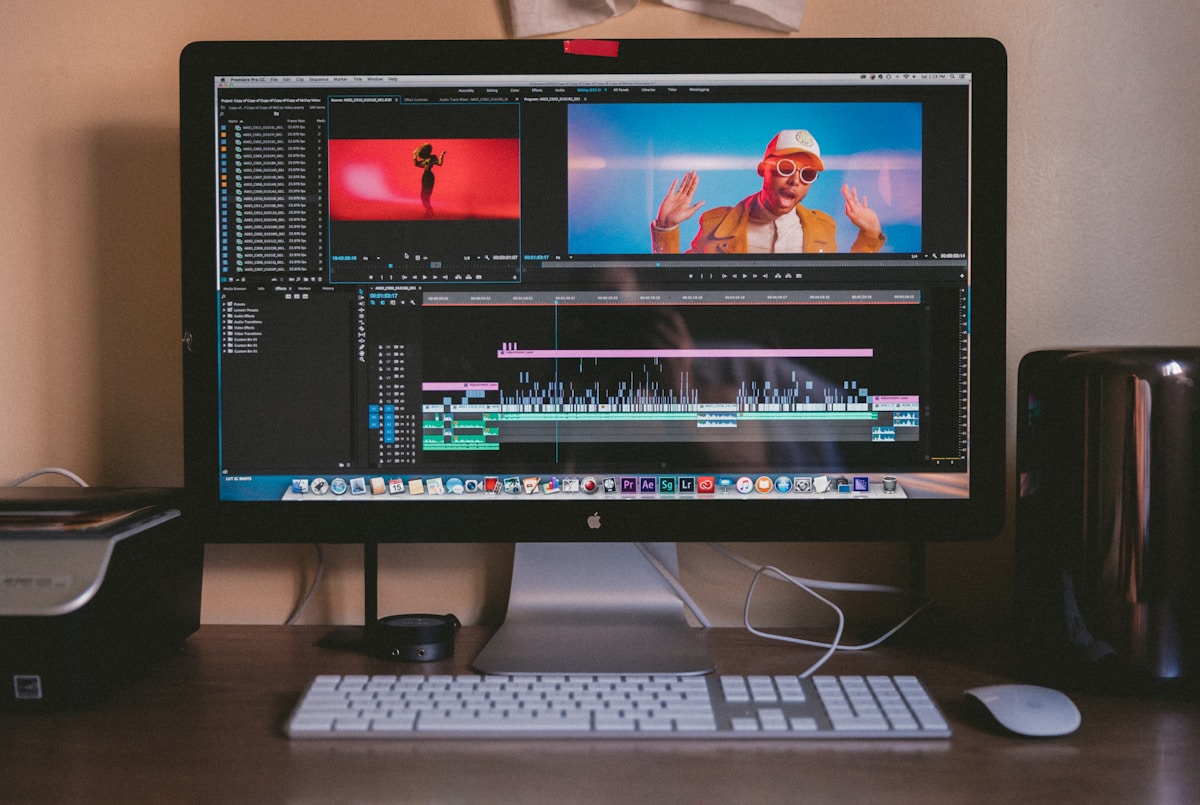
How AI-Generated Captions Boost Video Retention (With Tools)
AI caption generator video tools can increase watch time by up to 80% — here's the retention data and the tools that deliver it most reliably.
How to Generate AI Cinematic Trailers and Teasers (2026)
Learn how to use AI trailer generator tools to create cinematic teasers and promos with dramatic visuals, music sync, and 3-act structure — complete 2026 guide.

Best AI for Automatic Video Color Grading (Cinema Look 2026)
Discover the best AI color grading tools for achieving a cinema look automatically in 2026. Compare DaVinci Resolve AI, Colourlab, Topaz, and more for filmmakers.

6 AI Tools to Generate Animated Explainer Videos (No Skill Needed)
Discover the best AI explainer video generator tools for 2026 — create animated explainers with voice sync and no design experience required.