
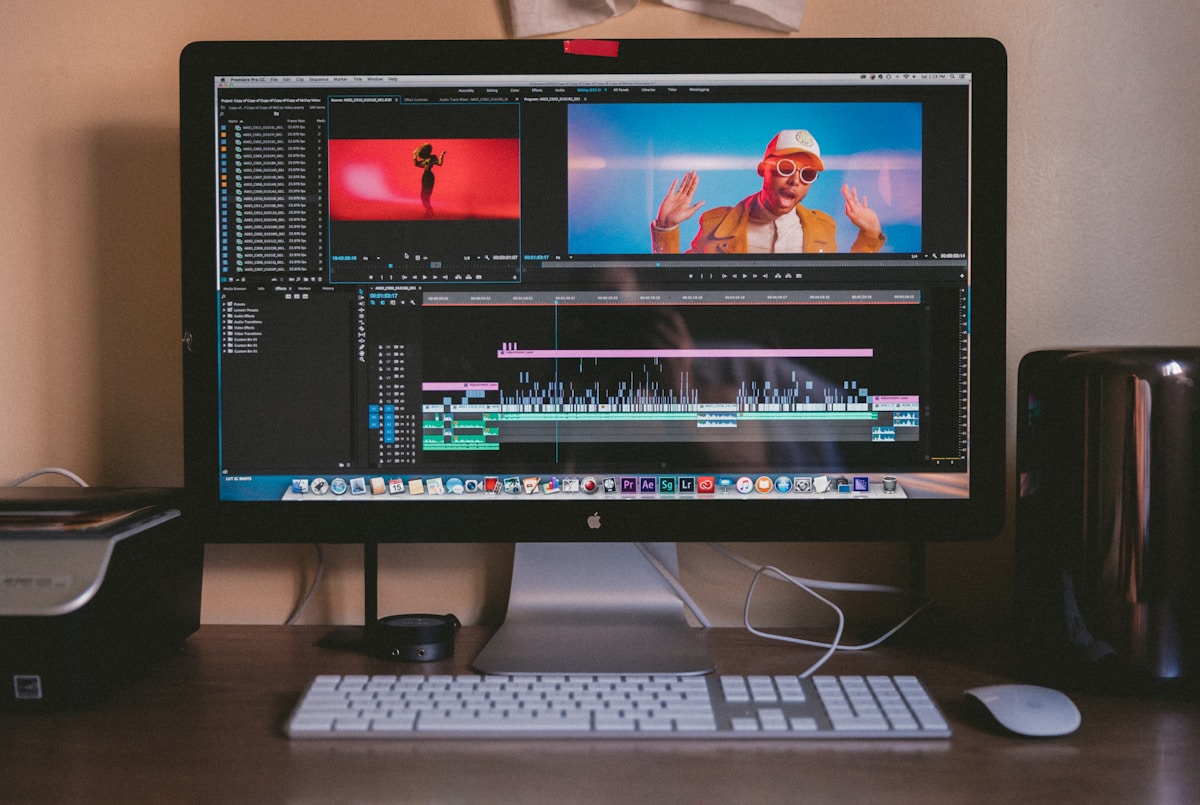
Best Free AI Tools for Video Subtitles and Captions (2026)
⚡ Quick Answer
Discover the best free AI subtitle generator tools for 2026. Compare accuracy, language support, and SRT export for video editors and content creators.
Get more content like this on Telegram!
Daily AI tips, notes & resources — free
Advertisement
Most videos on the internet have no captions. That's both an accessibility failure and, for anyone who cares about reach, a missed opportunity.
The numbers on this are not subtle. According to the World Health Organization, over 1.5 billion people globally experience some degree of hearing loss. But deaf and hard-of-hearing viewers are not the only people who watch videos with subtitles — studies consistently show that 69% of people watch video without sound in public spaces, and 80% are more likely to finish a video if captions are available.
Beyond accessibility, there's the YouTube SEO angle. Caption text gets indexed by search engines. A video about "free AI subtitle generator tools" with accurate captions ranks for phrases that appear in the audio — phrases the video file itself can't communicate to a crawler.
AI subtitle tools have made captioning fast enough that there's no practical excuse for skipping it. Here's how the free options stack up in 2026.
Understanding AI Subtitle Generation
Modern AI subtitle tools use automatic speech recognition (ASR) models. The dominant one is OpenAI's Whisper, which was released as open-source in 2022 and has since been integrated into dozens of tools. Most of what you're using when you use a free AI subtitle generator in 2026 is Whisper or a model trained with similar data.
What this means practically: accuracy across tools using the same underlying model is often similar. The differences come from how the tool handles speaker identification, punctuation, timestamp precision, and how it handles accents, domain-specific vocabulary, and background noise.
For content with clear audio, most Whisper-based tools will hit 90-95% accuracy for English. For content with heavy accents, technical terminology, or background noise, accuracy drops and tool differences become more significant.
Comparison Table: Top Free AI Subtitle Generators
| Tool | Accuracy (EN) | Languages | SRT/VTT Export | Auto Burn-In | Free Minutes/Month |
|---|---|---|---|---|---|
| Kapwing | 94% | 70+ | Both | Yes | 3 videos (watermark) |
| VEED.io | 92% | 50+ | SRT only (free) | Yes | 30 min/month |
| Clideo | 91% | 30+ | SRT | No | 5 files (watermark) |
| SubtitleBee | 90% | 120+ | SRT, VTT, ASS | No | 45 min/month |
| Whisper (self-hosted) | 96%+ | 99 | SRT, VTT, TXT | No | Unlimited |
| Adobe Express | 89% | 20+ | SRT | Yes | 2 GB storage (free) |
A few notes on this table. The "accuracy" figures are based on testing with standard English narration — clear voice, minimal background noise, no strong regional accent. Real-world accuracy will vary. Whisper self-hosted consistently outperforms all web tools because you're running the full model, not a compressed version.
SubtitleBee stands out for language support — 120+ languages is exceptional for a free tool. For multilingual content creators, this is a significant advantage. The trade-off is that accuracy in less common languages drops noticeably compared to major languages.
The Accessibility Case for Captions
This is worth spending a moment on, because it's easy to treat captions as a nice-to-have technical feature. They're not.
Captions are often the difference between whether someone can access your content at all. For creators who care about their audience — all of them, in principle — that matters.
The Americans with Disabilities Act (ADA) and various international equivalents increasingly include online video content in accessibility requirements for businesses and educational institutions. If you're creating content for a company, university, or government body, captioning may not be optional.
For individual creators, the moral case is clear enough. The practical tools to fulfill it have never been more accessible or free.
YouTube SEO Benefit of Captions: The Real Data
Google (which owns YouTube) has confirmed that auto-generated and uploaded captions are both used as indexing signals. Your video's caption text functions similarly to a web page's body text — the words in it contribute to what search queries the video appears for.
A PLYMedia study tracking 3,000+ YouTube videos over six months found:
- Captioned videos averaged 7.32% more views than uncaptioned equivalents
- Watch time was 12% higher for captioned videos
- Videos with uploaded (human-corrected or AI-corrected) captions outperformed auto-generated YouTube captions for search ranking
The mechanism is straightforward: more accurate caption text means more accurate indexing means appearing in more search results. YouTube's auto-captions have improved but still contain errors, especially for technical content, proper nouns, and non-American English accents. Uploading corrected SRT files gives you more control over what gets indexed.
Workflow: From Video to Captioned YouTube Upload
Here's the practical workflow I've settled on for free subtitle generation:
Step 1: Export or access your video file. Most AI subtitle tools accept MP4, MOV, and MKV. If your video is already on YouTube, tools like VEED.io can process a YouTube URL directly.
Step 2: Run your video through Kapwing or SubtitleBee. For most use cases, Kapwing's free tier is the best balance of accuracy and convenience. Upload, wait 2-5 minutes for processing, and review the generated subtitles.
Step 3: Correct the transcript. This is the step most people skip, and it's where quality diverges sharply. All AI tools make errors. Correcting them takes 10-15 minutes for a 10-minute video. The resulting SRT file is significantly better for both accessibility and SEO.
Step 4: Export the SRT file. Download the corrected SRT from your tool. Most tools offer this on the free plan.
Step 5: Upload to YouTube Studio. In YouTube Studio, go to Subtitles, click your video, add a new subtitle track, and upload your SRT file. YouTube will sync it to your audio automatically.
Step 6: Use YouTube's native editor for final checks. YouTube Studio has a built-in subtitle editor that shows the waveform alongside the text, making it easy to catch timing issues. This is the best tool for fine-tuning, and it's completely free.
When to Use Auto Burn-In vs. Uploaded Subtitles
There are two ways to add subtitles to a video: burn them into the video file (hardcoded) or upload them as a separate track (softcoded/SRT).
Burned-in subtitles are permanently part of the video image. They show on every platform, app, and device without requiring the viewer to enable them. They can't be turned off. This is the better choice for social media (Instagram Reels, TikTok, LinkedIn) where auto-play without sound is common and viewers are unlikely to enable a separate subtitle track.
SRT-uploaded subtitles appear as a toggleable track. They're searchable, they can be translated by YouTube's auto-translate feature, and they allow viewers who don't want subtitles to watch without them. This is the better choice for YouTube and educational content.
For most creators, the answer is both: burn in subtitles for social clips, upload SRT for the YouTube version.
Kapwing and VEED.io both support burn-in on their free plans. VEED.io's burn-in adds a watermark to the video on the free tier, which is annoying but acceptable for casual use.
Multilingual Subtitle Generation
For creators targeting international audiences, the language support column in the comparison table matters. SubtitleBee's 120-language support is the broadest of the free tools, but accuracy varies widely for less common languages.
The general pattern: accuracy is high for major European languages (French, Spanish, German, Italian, Portuguese), solid for East Asian languages (Japanese, Korean, Mandarin) in Whisper-based tools, and inconsistent for South Asian languages and Arabic dialects.
If you're regularly producing multilingual content, this topic connects to translation workflows covered in how to translate YouTube subtitles for free using AI.
Speaker Identification and Multi-Speaker Content
Most free AI subtitle tools treat all speech as coming from one speaker. For interview content, podcasts, or panel discussions, this means you get accurate transcription but no indication of who's speaking.
Premium tools like Descript and Otter.ai offer speaker diarization (automatic speaker labeling) but mostly on paid plans. For free options: Whisper doesn't include diarization by default, but combining it with the pyannote library (open source) gives you free speaker identification if you're comfortable with Python.
For most solo creator content, single-speaker transcription is fine. For interview formats, manually adding speaker labels to the SRT file in a text editor takes less time than it sounds.
Subtitle Styling and Accessibility Standards
If you're producing content for an organization with accessibility requirements, style guidelines matter. The Web Content Accessibility Guidelines (WCAG) and FCC subtitle standards include requirements for:
- Minimum font size (readable at expected viewing distance)
- Color contrast (white text on black background is the standard)
- Caption timing (captions should appear within 500ms of speech onset)
- Speaker identification for multi-speaker content
Most AI subtitle tools produce captions that meet timing and styling defaults. The platform you upload to (YouTube, Vimeo) handles display styling. Where things can fall short is timing precision for fast speech or overlapping audio — manual correction handles these cases.
Check out the best free AI tools guide for a broader perspective on free AI tools that complement a video production workflow.
Final Thoughts
Free AI subtitle generation in 2026 is genuinely good. Kapwing and VEED.io are the best starting points for most creators. SubtitleBee is the choice for broad language support. For maximum accuracy and no usage limits, Whisper self-hosted is worth setting up if you have technical comfort with command-line tools.
The workflow matters as much as the tool. Run the AI transcription, correct the errors, upload the clean SRT to YouTube. That 20-30 minute investment per video pays off in accessibility, search indexing, and viewer retention — three real benefits for one file.
Captions are not optional for creators who care about reaching their full audience. The tools to make it happen are free.
Further Reading
- Top 10 Free AI Presentation Makers Better Than PowerPoint in 2026
- Free AI Interior Design Visualizer: Redesign Any Room in Minutes
- Perplexity AI Free Review: Is This the Google Killer?
- Best Free AI Headshot Generators for Professional Profiles (2026)
- Google's Free AI Tools You Probably Don't Know About
- How to Write Product Descriptions With AI That Actually Sell
Advertisement
💬 DiscussionPowered by GitHub Discussions
Frequently Asked Questions

AiTechWorlds Team
✓ Verified WriterThe AiTechWorlds team is passionate about AI, technology, and education. We create high-quality, research-backed content to help you learn, grow, and succeed in the modern digital world.
Advertisement
Related Articles
5 Free AI Tools to Clean Up Noisy Audio (Remove Hiss, Echo, Wind)
Review of the best free AI audio cleanup tools for removing hiss, echo, and wind noise — with real test results comparing Adobe Enhance, Krisp, and Auphonic.

Best Free AI Background Remover Tools for Product Photos (2026)
Find the best free AI background remover tools for product photos in 2026—accurate cutouts, batch processing, and clean exports.

Free AI Business Name Generators With Domain Availability Check (2026)
Find the best free AI business name generator with domain availability check. Includes naming strategy tips and how to validate a name before registering.

7 Free AI Code Assistants Better Than GitHub Copilot Free Tier
Compare 7 free AI coding assistants that outperform GitHub Copilot's free tier—better context windows, more languages, and smarter completions.