

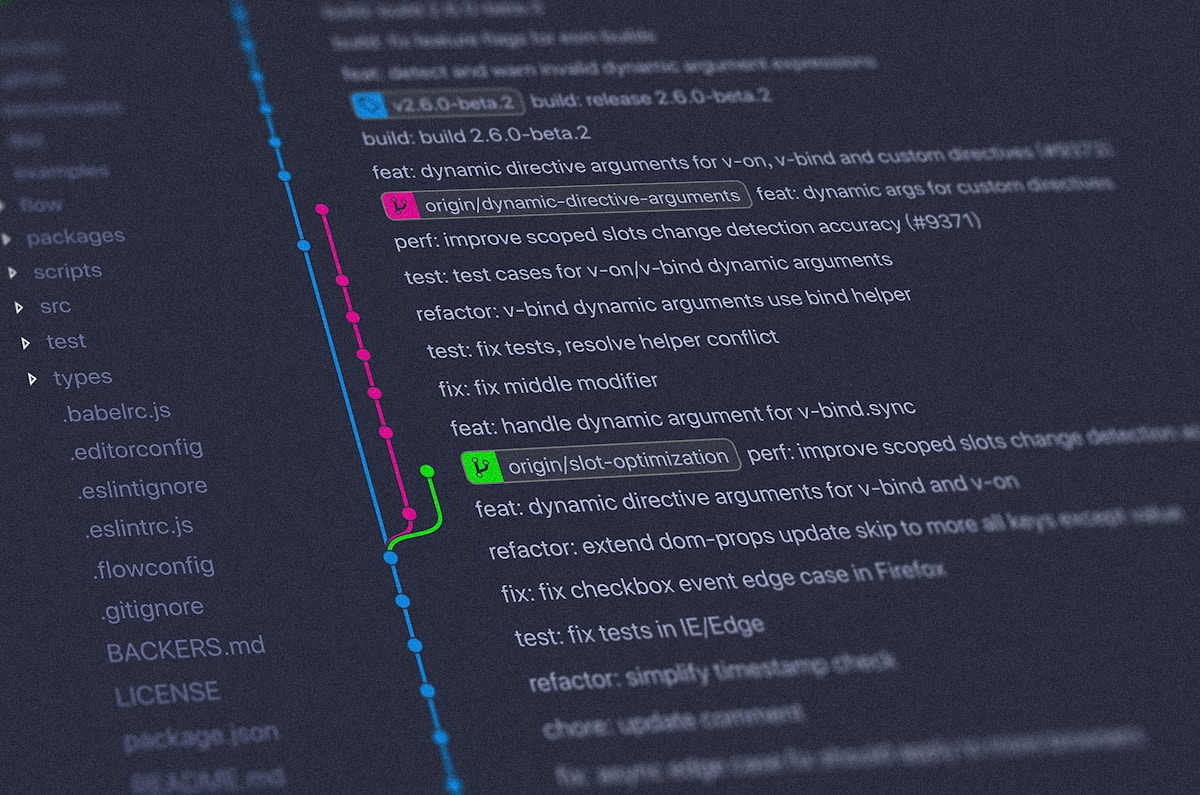
Git Commands Cheat Sheet for Daily Use (With the Undo Section You Actually Need)
⚡ Quick Answer
A practical Git commands cheat sheet — the 12 commands you use daily, the undo commands that rescue you, and the five mistakes that break repositories.
Get more content like this on Telegram!
Daily AI tips, notes & resources — free
Advertisement
Git Commands Cheat Sheet for Daily Use
Git has more than 150 commands. You will use twelve of them every day, another ten a few times a month, and the rest almost never.
This cheat sheet is organised by that reality rather than alphabetically. The daily twelve come first, the rescue commands second — because those are the ones you need while mildly panicking and cannot afford to search for — and the rest is grouped by the situation that produces it.
Updated for 2026. Covers Git 2.23 and later, including switch and restore.
The Daily Twelve
These twelve commands cover roughly ninety percent of real Git usage. Memorise them; do not look them up.
git status                    # what has changed, what is staged
git add <file>                # stage a specific file
git add -p                    # stage selectively, hunk by hunk
git commit -m "message"       # commit staged changes
git push                      # send commits to the remote
git pull                      # fetch and merge remote changes
git switch <branch>           # move to an existing branch
git switch -c <branch>        # create and move to a new branch
git branch                    # list local branches
git merge <branch>            # merge a branch into the current one
git log --oneline -10         # last 10 commits, one line each
git diff                      # unstaged changes vs working directory
One of these deserves special attention. git add -p stages changes interactively, hunk by hunk, asking yes or no for each block of modified lines. It is the difference between a commit that does one thing and a commit that does one thing plus three unrelated tweaks you had forgotten were in the file.
Most developers never learn it, and it is the single fastest way to improve the quality of your commit history.
The Undo Section
This is the part of the cheat sheet that earns its place on your wall. These commands are needed rarely, urgently, and under stress — which is the exact worst time to be searching a browser.
Undo a commit
git reset --soft HEAD~1    # remove commit, keep changes staged
git reset HEAD~1           # remove commit, keep changes unstaged (default)
git reset --hard HEAD~1    # remove commit AND destroy changes
The three flags are the whole story:
| Flag | Commit | Staging area | Working directory |
|---|---|---|---|
--soft | Removed | Kept | Kept |
--mixed (default) | Removed | Cleared | Kept |
--hard | Removed | Cleared | Destroyed |
--soft is what you want ninety percent of the time — you committed too early, or with a bad message, and you want to redo it. --hard is the only one that loses work, and it should feel slightly uncomfortable to type.
Undo a pushed commit
git revert <commit> # create a new commit that reverses an old oneThis is the safe one. revert does not rewrite history — it adds a new commit that undoes the changes. Everyone else's repository stays valid.
The rule is simple and worth memorising as a sentence: if it is pushed, revert; if it is local, reset.
Undo file changes
git restore <file>              # discard unstaged changes to a file
git restore --staged <file>     # unstage a file, keep the changes
git restore --source=HEAD~2 <file>   # restore a file from 2 commits ago
git restore was introduced in Git 2.23 specifically because git checkout was doing too many unrelated jobs. Older cheat sheets will tell you git checkout -- <file>; that still works, but restore says what it does.
Recover something you thought you destroyed
git reflog                              # every position HEAD has occupied
git checkout -b recovered <hash>        # rebuild a branch from a lost commit
git reflog is the most valuable command in this entire document.
Git does not immediately delete commits that stop being reachable. When you delete a branch, hard-reset away five commits, or botch a rebase, those commits still exist in the object database — they are simply not pointed at by anything. Reflog is the log of where HEAD has been, typically covering the last ninety days, and it lets you find them again.
The practical consequence: you have almost certainly not lost your work. Before panicking, run git reflog.
Fix the last commit
git commit --amend -m "better message"    # rewrite the last commit message
git commit --amend --no-edit              # add staged changes to last commit
Useful and dangerous in the same way as reset — amend rewrites the commit, so it produces a new hash. Fine locally. Not fine on a pushed shared branch.
Branching
git switch -c feature/login        # create and switch
git switch main                    # switch to existing
git branch -d old-feature          # delete a merged branch
git branch -D old-feature          # force-delete an unmerged branch
git branch -a                      # list all branches including remote
git branch -m new-name             # rename current branch
git switch and git restore split the old git checkout into two clearer commands. checkout still works and always will, but on a modern cheat sheet switch is the right default because it cannot accidentally discard file changes the way checkout could.
A note on -d versus -D: lowercase refuses to delete a branch whose commits are not merged anywhere, which is a safety net. Uppercase overrides it. If -d refuses, stop and check why before reaching for -D.
Merging and Rebasing
git merge feature              # merge feature into current branch
git merge --no-ff feature      # always create a merge commit
git rebase main                # replay current branch on top of main
git rebase -i HEAD~5           # interactively edit the last 5 commits
git rebase --abort             # escape a rebase that is going badly
git merge --abort              # escape a merge that is going badly
The decision between merge and rebase generates more argument than it deserves. A working rule:
Rebase your own branch before the pull request. Merge the pull request into main.
That gives you a clean, linear, reviewable feature branch and a main branch whose history honestly records when each feature landed.
The golden rule of rebasing: never rebase commits that other people have pulled. Rebasing changes every commit hash from the rebase point forward. If a colleague has those commits, their history and yours have silently diverged, and merging the two produces duplicate commits and confusion.
Both --abort commands are worth knowing before you need them. Any merge or rebase can be backed out of completely, at any point, as long as you have not committed the result.
Resolving Merge Conflicts
When Git cannot merge automatically, it writes both versions into the file with markers:
<<<<<<< HEAD
the version on your current branch
=======
the version from the branch you are merging in
>>>>>>> feature/login
Reading these is a two-second skill once you know the convention: above ======= is yours, below is theirs.
git status                     # list conflicted files
# edit files, delete the markers, keep what is correct
git add <resolved-file>        # mark as resolved
git commit                     # complete the merge
git merge --abort              # or back out entirely
What people get wrong: deleting one side without reading the other. A conflict means two people changed the same lines for two different reasons. Keeping only your version usually discards someone's fix. If you do not understand why the other side changed, ask before resolving.
Stashing Work in Progress
git stash                  # save uncommitted changes, clean the directory
git stash -u               # include untracked files
git stash pop              # apply the most recent stash and remove it
git stash apply            # apply but keep it on the stack
git stash list             # see all stashes
git stash drop             # delete the most recent stash
Use stash when something urgent interrupts you mid-change — a production bug, a review request — and your work is not in a committable state.
What people get wrong: forgetting that plain git stash ignores untracked files. You create a new file, stash, switch branches, and the new file follows you. Use -u if you have created files.
Second thing people get wrong: treating the stash as storage. Run git stash list occasionally. A stash from three months ago is almost always dead work, and keeping it costs you the mental overhead of wondering whether it matters.
Inspecting History
git log --oneline --graph --all      # visual branch history
git log -p <file>                    # every change to one file, with diffs
git log --author="name"              # commits by one person
git log -S "searchTerm"              # commits that added or removed a string
git blame <file>                     # who last changed each line
git show <commit>                    # full detail of one commit
git diff main..feature               # everything different between branches
Two of these are underused and worth promoting.
git log -S "searchTerm" — the "pickaxe" — finds commits where the number of occurrences of a string changed. This is how you answer "when was this function deleted?" or "which commit introduced this config value?" It searches content, not commit messages, which is almost always what you actually want.
git log --oneline --graph --all gives you the branch topology as ASCII art. If you have ever been confused about what merged into what, this is the answer, and it takes no setup.
Finding the Commit That Broke Something
git bisect start
git bisect bad                 # current commit is broken
git bisect good <old-hash>     # this old commit was fine
# Git checks out a midpoint; test it; then:
git bisect good     # or: git bisect bad
# repeat until Git names the guilty commit
git bisect reset               # return to where you started
git bisect performs a binary search through history. A thousand commits are narrowed to one in about ten tests, because each answer halves the remaining range.
You can automate it entirely:
git bisect run npm testGit runs the command at each step, treats exit code zero as good and non-zero as bad, and finds the commit unattended. For a slow-to-reproduce bug with a reliable test, this is close to magic.
Working With Remotes
git remote -v                          # list remotes
git fetch                              # download remote changes, do not merge
git pull --rebase                      # fetch and rebase instead of merge
git push -u origin feature/login       # push and set upstream tracking
git push --force-with-lease            # safe force push
Never use git push --force. Use --force-with-lease instead.
The difference matters. Plain --force overwrites the remote branch unconditionally, including any commits a colleague pushed in the last five minutes that you have not seen. --force-with-lease refuses if the remote has moved since your last fetch. It is the same operation with a safety check, and there is no situation where you want the version without the check.
git pull --rebase is worth setting as your default:
git config --global pull.rebase truePlain pull creates a merge commit every time your local branch has diverged from the remote, which fills history with "Merge branch 'main' of github.com..." noise that records nothing anyone will ever want to read.
The Five Mistakes That Cause Real Damage
1. Force-pushing to a shared branch. This rewrites history for everyone. If you must, use --force-with-lease, and tell the team first.
2. git reset --hard with uncommitted work. Reflog recovers commits. It does not recover uncommitted changes, because those were never objects in the database. Commit or stash first, always.
3. Committing secrets. Removing a .env file in a later commit does not remove it from history — it is still in every clone. It must be purged from history and, more importantly, the credential must be rotated, because it should be assumed compromised the moment it was pushed.
4. Rebasing a public branch. Covered above, and it is worth repeating because it is the mistake that most reliably confuses an entire team for an afternoon.
5. Committing everything with git add . without looking. This is how build artefacts, editor config, and half-finished debugging code enter repositories. git status before every commit, and git add -p when the change is not trivial.
Useful Configuration
git config --global user.name "Your Name"
git config --global user.email "you@example.com"
git config --global init.defaultBranch main
git config --global pull.rebase true
git config --global push.autoSetupRemote true
push.autoSetupRemote eliminates the "fatal: The current branch has no upstream branch" message that every developer has typed past thousands of times. It is a one-line fix for a daily irritation.
What to Memorise, What to Look Up
| Memorise | Look up every time |
|---|---|
status, add, commit | reset --hard |
push, pull, fetch | rebase -i |
switch, branch, merge | push --force-with-lease |
log --oneline, diff | bisect, cherry-pick |
stash, stash pop | Anything that rewrites history |
The right-hand column is not there because those commands are hard. It is there because their failure modes are expensive and a two-second check costs nothing.
Print This Section
If you tape one thing beside your monitor, make it this:
UNDO
  local commit, keep changes   git reset --soft HEAD~1
  pushed commit                git revert <commit>
  file changes                 git restore <file>
  unstage a file               git restore --staged <file>
  lost commit or branch        git reflog  →  git checkout -b x <hash>
  bad merge/rebase             git merge --abort / git rebase --abort

RULE
  pushed → revert.  local → reset.
  force push → always --force-with-lease.
Everything else on this page you can search for. Those six lines are the ones you need while your heart rate is elevated.
🔗 Next in this collection: Linux Commands Cheat Sheet for Beginners, or return to The Complete Developer Cheat Sheet Collection to pick the sheet matching your stack.
Advertisement
💬 DiscussionPowered by GitHub Discussions
Frequently Asked Questions
AI & Software Engineering Editorial Team
The AiTechWorlds editorial team writes and reviews in-depth guides on artificial intelligence, machine learning, prompt engineering, programming, and developer tools. Every article is fact-checked against primary sources and kept up to date for working developers and CS students.
Not sure yet? Ask AI about this article
Get an instant, unbiased AI summary of “Git Commands Cheat Sheet for Daily Use (With the Undo Section You Actually Need)”.
Advertisement
Related Articles

Bash Scripting Cheat Sheet (The First Line Every Script Needs)
A practical Bash scripting cheat sheet — variables, conditionals, loops, functions, and the set -euo pipefail line that turns silent failure into loud failure.
15 Coding Interview Patterns That Solve Most Problems
The 15 coding interview patterns that cover most problems — the signal that identifies each one, a minimal code skeleton, and a two-minute recognition table.

CSS and Tailwind Cheat Sheet: Flexbox, Grid and Centering Solved
A practical CSS and Tailwind cheat sheet — Flexbox vs Grid decision rules, every centering method, responsive breakpoints, and the specificity traps.

Data Structures and Big-O Cheat Sheet for Coding Interviews
A practical big O cheat sheet — the complexity ladder with real examples, data structure operation tables, and how to state your complexity in an interview.