
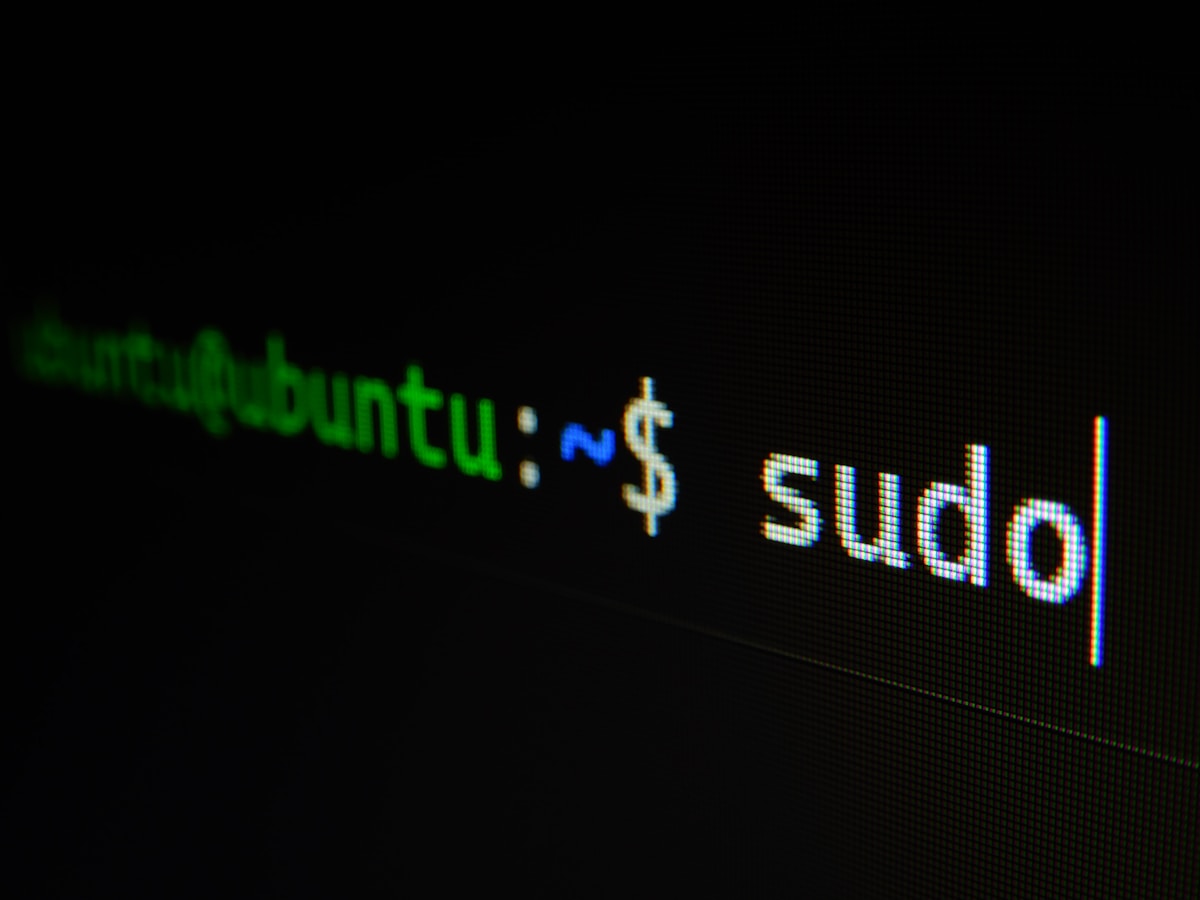
Terminal and Command Line Mastery: 30 Commands That Changed My Life
⚡ Quick Answer
Learn essential terminal commands for developers — navigation, file operations, git, process management, and shell shortcuts that make you dramatically faster at the command line.
Get more content like this on Telegram!
Daily AI tips, notes & resources — free
Advertisement
Terminal and Command Line Mastery: 30 Commands That Changed My Life
For the first year of my development career, I was afraid of the terminal. I'd open it, type a command, something would fail, and I'd panic and close it. I felt like everyone else understood something fundamental that I'd missed.
The turning point was a week when my team's shared server went down and we could only access it via SSH — no GUI, no file browser, no code editor with a UI. Pure terminal.
I had to learn or be useless. Within three days of forced practice, I had learned more about the terminal than in my entire previous year. Within a week, I was faster in the terminal than in any GUI for many tasks.
In this guide, you'll learn the 30 commands that I use every single day, grouped by category, with real use cases and the keyboard shortcuts that make the terminal feel like a superpower.
The Essentials: Navigation
1. pwd — Where Am I?
Print Working Directory. Shows your current location:
pwd
# /Users/alice/projects/my-app
2. ls — List Files
ls              # List files in current directory
ls -la          # Long format (permissions, size, date) + hidden files
ls -lh          # Human-readable file sizes (KB, MB instead of bytes)
ls src/         # List files in a specific directory
The -la combination is the most useful: l for detailed view, a for including hidden files (dotfiles like .env, .gitignore).
3. cd — Change Directory
cd projects/my-app    # Navigate into a directory
cd ..                 # Go up one level
cd ../..              # Go up two levels
cd ~                  # Go to home directory (/Users/username)
cd -                  # Go back to previous directory (like Back button)
The cd - trick is underrated — instantly toggles between two directories.
4. mkdir — Create Directory
mkdir new-folder
mkdir -p path/to/deeply/nested/folder    # Create all parent directories
5. touch — Create File
touch index.html style.css app.js # Create multiple files at once
File Operations
6. cp — Copy Files
cp file.txt backup.txt                  # Copy file
cp -r src/ backup/                      # Copy directory recursively
7. mv — Move or Rename
mv old-name.txt new-name.txt            # Rename
mv file.txt ~/Desktop/                  # Move to different location
mv *.jpg photos/                        # Move all .jpg files
8. rm — Remove Files
rm file.txt                             # Delete a file
rm -r folder/                           # Delete directory recursively
rm -rf node_modules/                    # Force delete (no confirmation)
Warning: rm is permanent — there's no recycle bin. Be careful with -rf (recursive + force). Always double-check the path before running.
9. cat — Display File Contents
cat package.json                        # Display file contents
cat file1.txt file2.txt > combined.txt  # Concatenate files
10. less — Scroll Large Files
less large-log-file.log # Scroll with arrow keys, 'q' to quit
Better than cat for large files — cat dumps everything at once, less paginates.
Text Processing (The Powerful Stuff)
11. grep — Search Text
grep "error" app.log                    # Find lines containing "error"
grep -i "error" app.log                 # Case insensitive
grep -r "TODO" src/                     # Recursive search in directory
grep -n "function" app.js               # Show line numbers
grep -v "DEBUG" app.log                 # Exclude lines matching pattern
grep is one of the most useful commands in development. Searching all files for a TODO, finding where a function is used, filtering log files — all done in one line.
12. find — Find Files
find . -name "*.js"                     # Find all .js files
find . -name "*.log" -type f            # Only files, not directories
find . -name "node_modules" -prune      # Exclude node_modules
find . -newer reference.txt             # Files newer than reference.txt
find . -size +10M                       # Files larger than 10MB
13. Piping | — Combine Commands
The pipe sends output of one command as input to the next:
ls -la | grep ".js"                     # List only .js files
cat app.log | grep "ERROR" | wc -l     # Count error lines
ps aux | grep node                      # Find Node.js processes
find . -name "*.js" | grep -v test     # Find .js files excluding test files
14. wc — Word/Line Count
wc -l file.txt          # Count lines
wc -w file.txt          # Count words
cat app.log | wc -l    # Count lines in a file
15. sort and uniq — Sort and Deduplicate
cat tags.txt | sort              # Sort alphabetically
cat tags.txt | sort | uniq       # Remove duplicates
cat tags.txt | sort | uniq -c   # Count occurrences
Process Management
16. ps aux — List Running Processes
ps aux                          # All processes
ps aux | grep node              # Find node processes
17. kill and pkill — Stop Processes
kill 12345                      # Kill process by PID
kill -9 12345                   # Force kill (SIGKILL)
pkill node                      # Kill all processes named 'node'
18. Ctrl+C and Ctrl+Z
Ctrl+C— Interrupt (kill) the running processCtrl+Z— Suspend process to backgroundfg— Bring suspended process back to foregroundbg— Run suspended process in background
19. & — Run in Background
npm run dev &           # Start dev server in background
./long-script.sh &      # Run script, get terminal back immediately
jobs                    # List background jobs
Environment and System
20. Environment Variables
echo $PATH                              # Display PATH variable
export NODE_ENV=development             # Set variable for current session
echo $NODE_ENV                          # Display variable value

# In .bashrc or .zshrc (permanent):
export EDITOR=code
21. which — Find Command Location
which node              # /usr/local/bin/node
which python3           # /usr/bin/python3
which npm               # /usr/local/bin/npm
22. history — Command History
history                 # List past commands
history | grep git      # Find past git commands
!42                     # Re-run command number 42
!!                      # Re-run last command
!git                    # Re-run last git command
Network and Files
23. curl — HTTP Requests
curl https://api.example.com/users          # GET request
curl -X POST https://api.example.com/users \
  -H "Content-Type: application/json" \
  -d '{"name": "Alice"}'                    # POST with JSON

curl -o file.txt https://example.com/file   # Download to file
Perfect for testing APIs without leaving the terminal. Pairs well with our API tutorial.
24. ssh — Secure Shell
ssh user@hostname               # Connect to server
ssh -i key.pem user@hostname    # Connect with key file
ssh -L 3000:localhost:3000 user@hostname  # Port forwarding
25. scp — Copy Files Over SSH
scp file.txt user@server:/remote/path/
scp -r folder/ user@server:/remote/path/
Keyboard Shortcuts That Change Everything
These work in bash and zsh:
| Shortcut | Action |
|---|---|
Tab | Autocomplete command or path |
Tab Tab | Show all completions |
Ctrl+A | Jump to start of line |
Ctrl+E | Jump to end of line |
Ctrl+W | Delete word backward |
Ctrl+U | Delete entire line |
Ctrl+R | Search command history |
↑ ↓ | Previous/next command |
Alt+← Alt+→ | Jump word by word |
Ctrl+R is the most powerful: starts a reverse search through your command history. Type any part of a past command to find and re-run it.
Shell Scripts: Automate Everything
Create a file setup.sh:
#!/bin/bash

echo "Setting up development environment..."

# Install dependencies
npm install

# Copy environment file
if [ ! -f .env ]; then
  cp .env.example .env
  echo "Created .env from .env.example — please fill in your values"
fi

# Create directories
mkdir -p logs tmp

# Start the database
docker compose up -d db

echo "Setup complete! Run 'npm run dev' to start."
chmod +x setup.sh    # Make executable
./setup.sh           # Run it
Every repetitive setup task is a script waiting to be written. For Docker commands specifically, our Docker tutorial covers containerized development environments.
Further Reading
- The Art of Debugging: How to Find Bugs Faster Than Everyone Else
- Clean Code Principles: Writing Code Your Future Self Will Thank You For
- How to Write Technical Documentation That People Actually Read
- The Developer's Guide to Regular Expressions (Regex Made Simple)
- How I Solve Any Programming Problem (My Personal Framework)
- The Web Developer's Guide to Chrome DevTools (Hidden Features)
- HTTP vs HTTPS: Why Every Website Needs an SSL Certificate Today
- freeCodeCamp Review 2025: Is It Still the Best Way to Learn Coding?
Advertisement
💬 DiscussionPowered by GitHub Discussions
Frequently Asked Questions

AiTechWorlds Team
✓ Verified WriterThe AiTechWorlds team is passionate about AI, technology, and education. We create high-quality, research-backed content to help you learn, grow, and succeed in the modern digital world.
Advertisement
Related Articles

15 Coding Habits That Separate Senior Developers from Juniors
Discover the coding habits senior developers follow every day — from writing readable code to debugging smarter — that separate pros from beginners.

The 10 VS Code Extensions That Make You Code Twice as Fast
The best VS Code extensions in 2025 that genuinely boost productivity — from AI code completion to live sharing, error highlighting, and formatting automation.

Clean Code Principles: Writing Code Your Future Self Will Thank You For
A practical clean code guide with real examples — learn naming conventions, function design, comments, error handling, and code structure that makes code a joy to maintain.

Data Structures for Humans: Finally Understanding Arrays, Trees, Graphs
Data structures explained simply for beginners — learn arrays, linked lists, stacks, queues, trees, and graphs with real-world analogies and practical code examples.