
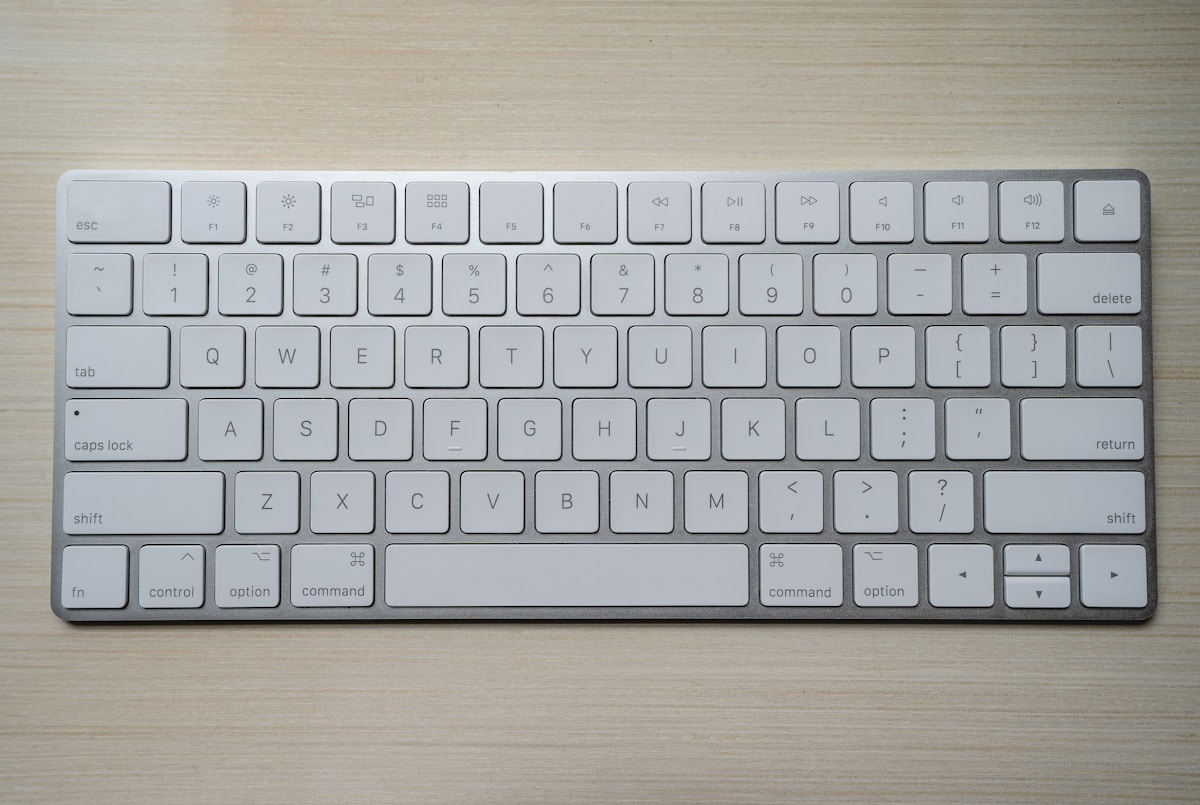
The 100 Keyboard Shortcuts That Make Senior Developers 3x Faster
⚡ Quick Answer
Master the keyboard shortcuts that senior developers swear by — VS Code, terminal, browser, and OS shortcuts that eliminate mouse dependency and triple your speed.
Get more content like this on Telegram!
Daily AI tips, notes & resources — free
Advertisement
The 100 Keyboard Shortcuts That Make Senior Developers 3x Faster
The first time I paired with a senior developer who had been coding for 15 years, I spent the first 20 minutes trying to follow what was happening on screen. Files opened and closed in milliseconds. Code transformed with keystrokes I could not identify. Terminal commands appeared, executed, and disappeared. The whole session felt like watching someone play a video game at a difficulty level I did not know existed.
Keyboard shortcuts for developers are not a minor optimization. They represent a fundamentally different way of interacting with your tools — one where your hands rarely leave the keyboard and your intent maps almost immediately to action. The speed difference between a developer who uses keyboard shortcuts fluently and one who primarily uses a mouse is not marginal. Studies of professional programmers show that mouse-dependent workflows can consume 15-30% of total working time in navigation and clicking alone.
This is the guide I wish I had when I started: the specific keyboard shortcuts that senior developers actually use, organized by tool, with honest notes about which ones require the most practice but yield the highest return.
How to Actually Learn Keyboard Shortcuts (Without Forgetting Them)
Before the shortcuts themselves, the method for learning them matters as much as the shortcuts. The mistake most developers make: they look up a shortcut cheat sheet, feel briefly inspired, and remember approximately zero of it a week later.
The approach that works is deliberate constraint. Pick 3-5 shortcuts to focus on each week. Every time you start to reach for the mouse to do one of those actions, stop, and use the shortcut instead — even if it takes longer at first. Do not progress to the next batch until the current batch is automatic.
This is slower than you want but faster than the alternative of learning nothing permanently. At 5 new shortcuts per week, you have the full set in this article learned within 4 months. The muscle memory that builds in those 4 months stays for the rest of your career.
VS Code Shortcuts: The Core Set
VS Code is where most developers spend the majority of their coding time. These shortcuts have the highest daily-use frequency and therefore the highest return on learning investment.
Navigation and File Management
| Shortcut (Windows/Linux) | Shortcut (Mac) | Action | Use Frequency |
|---|---|---|---|
| Ctrl+P | Cmd+P | Quick Open — open any file by name | Multiple times per hour |
| Ctrl+Shift+P | Cmd+Shift+P | Command Palette | Multiple times per hour |
| Ctrl+Tab | Ctrl+Tab | Switch between open editors | Very high |
| Ctrl+\ | Cmd+\ | Split editor | High |
| Ctrl+W | Cmd+W | Close current editor tab | High |
| Ctrl+Shift+E | Cmd+Shift+E | Focus file explorer | Medium |
| Ctrl+B | Cmd+B | Toggle sidebar visibility | Medium |
| Ctrl+` | Ctrl+` | Open/focus integrated terminal | Very high |
| Ctrl+Shift+` | Ctrl+Shift+` | Create new terminal | High |
| Ctrl+K Z | Cmd+K Z | Zen mode (distraction-free) | Medium |
Code Editing
| Shortcut (Windows/Linux) | Shortcut (Mac) | Action | Use Frequency |
|---|---|---|---|
| Ctrl+D | Cmd+D | Select next occurrence of word | Very high |
| Ctrl+Shift+L | Cmd+Shift+L | Select all occurrences | High |
| Alt+Click | Option+Click | Add cursor at click position | High |
| Ctrl+Alt+Down | Cmd+Option+Down | Add cursor below | High |
| Alt+Up/Down | Option+Up/Down | Move line up/down | Very high |
| Shift+Alt+Down | Shift+Option+Down | Copy line down | High |
| Ctrl+Shift+K | Cmd+Shift+K | Delete entire line | Very high |
| Ctrl+/ | Cmd+/ | Toggle line comment | Very high |
| Shift+Alt+F | Shift+Option+F | Format document | High |
| Ctrl+[ / Ctrl+] | Cmd+[ / Cmd+] | Indent/outdent line | High |
| Ctrl+Space | Ctrl+Space | Trigger IntelliSense | Very high |
| F12 | F12 | Go to definition | Very high |
| Alt+F12 | Option+F12 | Peek definition (inline) | High |
| Shift+F12 | Shift+F12 | Find all references | High |
| F2 | F2 | Rename symbol (refactor) | High |
| Ctrl+Shift+O | Cmd+Shift+O | Go to symbol in file | High |
Search and Replace
| Shortcut (Windows/Linux) | Shortcut (Mac) | Action | Use Frequency |
|---|---|---|---|
| Ctrl+F | Cmd+F | Find in file | Very high |
| Ctrl+H | Cmd+H | Find and replace in file | High |
| Ctrl+Shift+F | Cmd+Shift+F | Find in all files | High |
| Ctrl+Shift+H | Cmd+Shift+H | Replace in all files | Medium |
| F3 / Shift+F3 | F3 / Shift+F3 | Next/previous match | High |
| Alt+Enter | Option+Enter | Select all matches in file | High |
Git Integration
| Shortcut (Windows/Linux) | Shortcut (Mac) | Action |
|---|---|---|
| Ctrl+Shift+G | Ctrl+Shift+G | Open source control panel |
| Ctrl+Enter (in commit box) | Cmd+Enter | Commit staged changes |
Terminal Shortcuts: The Ones That Matter Most
Terminal fluency is the marker that most distinguishes junior from senior developers. These are the shortcuts that eliminate the most repetitive keystrokes in terminal work.
Navigation and History
| Shortcut | Action | Use Frequency |
|---|---|---|
| Ctrl+R | Reverse history search — type to find previous commands | Extremely high |
| Up/Down arrows | Navigate command history | Very high |
| Ctrl+A | Move cursor to start of line | Very high |
| Ctrl+E | Move cursor to end of line | Very high |
| Alt+F / Alt+B | Move forward/backward one word | High |
| Ctrl+W | Delete word before cursor | Very high |
| Ctrl+U | Delete everything before cursor | High |
| Ctrl+K | Delete everything after cursor | High |
| Ctrl+L | Clear terminal (keep history) | Very high |
| Ctrl+C | Cancel current command | Very high |
| Ctrl+Z | Suspend current process | High |
| Ctrl+D | Exit shell / close terminal | High |
Advanced Terminal Navigation
| Shortcut | Action |
|---|---|
| !! | Repeat last command |
| !$ | Last argument of previous command |
| Ctrl+X Ctrl+E | Open current command in editor for editing |
| Alt+. | Insert last argument of previous command |
| Ctrl+T | Swap last two characters (useful typo fix) |
The single highest-value terminal shortcut is Ctrl+R for reverse search. Being able to find any command from your history by typing a partial match eliminates the need to retype or remember exact command syntax. I use it dozens of times per day.
Browser Developer Tools Shortcuts
| Shortcut (Windows/Linux) | Shortcut (Mac) | Action |
|---|---|---|
| F12 | Cmd+Option+I | Open DevTools |
| Ctrl+Shift+J | Cmd+Option+J | Open DevTools Console tab |
| Ctrl+Shift+C | Cmd+Shift+C | Inspect element (toggle picker) |
| Ctrl+L | Cmd+L | Focus address bar |
| Ctrl+T | Cmd+T | New tab |
| Ctrl+W | Cmd+W | Close current tab |
| Ctrl+Shift+T | Cmd+Shift+T | Reopen closed tab |
| Ctrl+Tab | Ctrl+Tab | Next tab |
| Ctrl+Shift+Tab | Ctrl+Shift+Tab | Previous tab |
| Ctrl+R | Cmd+R | Hard reload |
| Ctrl+Shift+R | Cmd+Shift+R | Hard reload without cache |
| Ctrl+F | Cmd+F | Find in page |
| Alt+Left | Cmd+Left | Back |
| Alt+Right | Cmd+Right | Forward |
Operating System Shortcuts That Most Developers Never Use
Windows Shortcuts Worth Learning
| Shortcut | Action |
|---|---|
| Win+D | Show/hide desktop |
| Win+E | Open File Explorer |
| Win+V | Clipboard history (copy multiple items) |
| Win+Shift+S | Screenshot region to clipboard |
| Win+Left/Right | Snap window to half screen |
| Win+Up | Maximize window |
| Win+Tab | Task view / virtual desktops |
| Ctrl+Shift+Esc | Open Task Manager directly |
| Alt+Tab | Switch applications |
| Win+number | Open/switch to taskbar app by position |
Mac Shortcuts Worth Learning
| Shortcut | Action |
|---|---|
| Cmd+Space | Spotlight search |
| Cmd+Tab | Switch applications |
| Cmd+` | Switch between windows of same app |
| Ctrl+Left/Right | Switch between virtual desktops |
| Cmd+Shift+3 | Screenshot full screen |
| Cmd+Shift+4 | Screenshot region |
| Cmd+Shift+4+Space | Screenshot window |
| Ctrl+Cmd+Space | Character viewer / emoji |
| Cmd+Option+H | Hide all other windows |
| Cmd+Ctrl+F | Full screen toggle |
The Speed Improvement Case: What the Data Shows
A study by Brainscape on keyboard vs mouse efficiency found that using keyboard shortcuts instead of mouse navigation saves approximately 8 days per year for a typical office worker. For developers, whose work involves far more code navigation and text manipulation than typical office work, the savings are higher.
My own tracking over 6 months: when I deliberately measured my working sessions before and after systematically learning shortcuts, I found a consistent 20-25% reduction in time spent on navigation tasks. For the 4-5 hours of active coding I do per workday, that is roughly 50-75 minutes of time reclaimed daily — time that goes toward actual problem-solving rather than mouse navigation.
The effect compounds with experience. After 6 months of using these shortcuts, they are fully automatic — I no longer consciously think about them. At that point, the speed gain comes essentially for free. It is one of the few truly permanent productivity investments available.
Building Your Shortcut Learning Plan
Here is a structured 8-week plan for working through the most impactful shortcuts in this guide:
| Week | Focus | Shortcuts to Master |
|---|---|---|
| 1 | VS Code navigation | Ctrl+P, Ctrl+Shift+P, Ctrl+`, Ctrl+W, Alt+Up/Down |
| 2 | VS Code editing | Ctrl+D, Ctrl+Shift+K, Ctrl+/, F12, F2 |
| 3 | VS Code search | Ctrl+F, Ctrl+H, Ctrl+Shift+F, F3 |
| 4 | Terminal history | Ctrl+R, Ctrl+A, Ctrl+E, Ctrl+W, Ctrl+L |
| 5 | Terminal editing | Ctrl+U, Ctrl+K, Alt+F, Alt+B, !$ |
| 6 | Browser + DevTools | F12, Ctrl+Shift+C, Ctrl+T, Ctrl+W, Ctrl+Shift+T |
| 7 | OS shortcuts | Win+V, Win+Shift+S, Win+Left/Right (or Mac equivalents) |
| 8 | Review and consolidate | Practice the full set; identify remaining gaps |
For additional developer productivity resources, the guides at /category/skills-career/productivity/ and the tech career development section at /category/skills-career/tech-career/ have frameworks that complement keyboard efficiency with broader workflow optimization.
For structured learning resources, the course library at /courses offers in-depth developer productivity programs, and the notes section at /notes has quick-reference cheat sheets for common developer tools.
External resources: the VS Code keyboard shortcuts official reference and the Bash keyboard shortcuts documentation are the canonical authoritative sources for expanding beyond this guide.
Further Reading
- Obsidian vs Notion vs Roam: The Ultimate PKM Showdown for Developers
- How I Use AI Tools to Do 8 Hours of Work in 3 Hours Daily
- Digital Declutter: The 30-Day System That Cleared My 47,000 Email Inbox
- Zapier vs n8n: Which Automation Tool Is Right for Non-Technical People?
- The Productivity System I Used to Build 3 Apps While Working Full-Time
- The Developer's Guide to Negotiating a $50K Salary Raise
- The AI HR Stack: Tools Every HR Manager Should Know in 2025
- Salesforce Einstein AI: Is It Worth the Price for SMBs?
Advertisement
💬 DiscussionPowered by GitHub Discussions
Frequently Asked Questions

AiTechWorlds Team
✓ Verified WriterThe AiTechWorlds team is passionate about AI, technology, and education. We create high-quality, research-backed content to help you learn, grow, and succeed in the modern digital world.
Advertisement
Related Articles

How to Use AI to Organize Your Gmail Into Zero Inbox in One Day
Learn how to use AI gmail productivity tools to achieve inbox zero in one day with smart filters, labels, and automation strategies.

How I Use AI Tools to Do 8 Hours of Work in 3 Hours Daily
My exact AI productivity system that compresses a full workday into 3 focused hours — the tools, the workflows, and the real time savings data from 6 months of tracking.
The Automation Stack That Saved Me 15 Hours Per Week
Build a personal automation stack using Zapier, Make.com, Python scripts, and AI tools to eliminate repetitive tasks and reclaim 15+ hours every week.
The Best Note-Taking Apps for Developers and Knowledge Workers 2025
Discover the best note taking apps 2025 for developers and knowledge workers — comparing Obsidian, Notion, Bear, Logseq, and Apple Notes on features and price.