
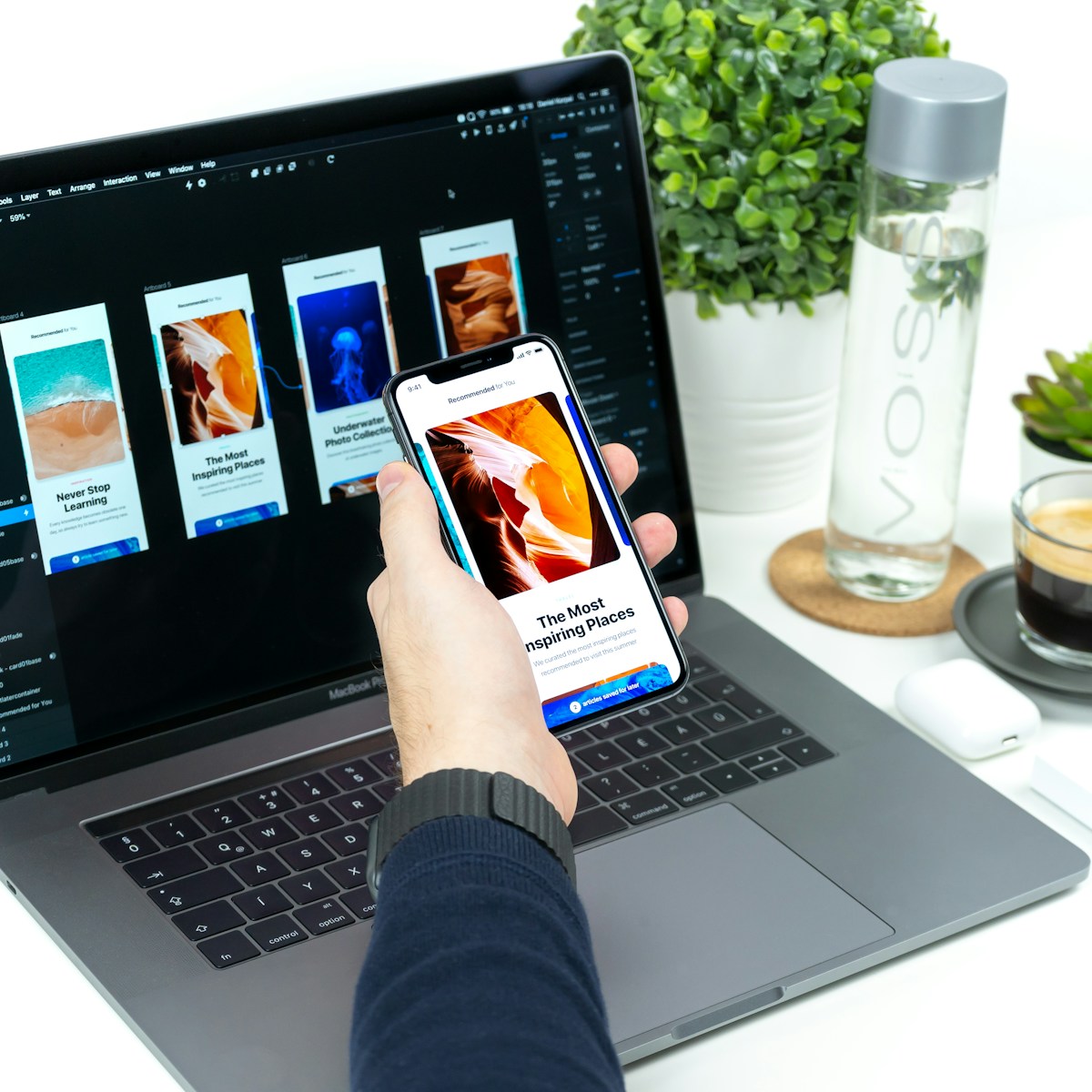
How to Create a Design System in Figma (Components, Variants)
⚡ Quick Answer
A hands-on guide to building a Figma design system from scratch—atomic structure, components, variants, and design tokens that actually scale.
Get more content like this on Telegram!
Daily AI tips, notes & resources — free
Advertisement
I spent three weeks rebuilding a design system for a client project a while back. Not because the old one was bad design—it had fine colors and reasonable typography. It fell apart because nobody had thought through how components would grow. Every new screen required a new "custom" component. Developers were building from inconsistent specs. The system wasn't a system—it was a folder of screenshots with good intentions.
Building a design system in Figma properly is a different kind of work than making mockups. It requires thinking ahead, naming things carefully, and accepting that the foundation work pays off slowly. This guide walks through the process I've landed on after multiple iterations.
What a Design System Actually Is (And Isn't)
A design system is not a component library. It's not a style guide. It's not a Figma file with nice colors.
A design system is the combination of design decisions, component behavior rules, and documentation that lets multiple people build consistent interfaces without coordinating on every detail. The component library is one artifact of that system. The style guide is another. Figma is where you build both of those artifacts, but the thinking behind them has to come first.
The practical test: can a new designer join your team and build a page that looks like it belongs in your product—without asking anyone—by following your system? If yes, you have a design system. If no, you have a Figma file.
This distinction matters for how you structure the work. We're building something people use, not something that looks impressive in a portfolio.
Atomic Design: The Framework Behind Good Systems
Brad Frost's atomic design framework is still the most useful mental model for organizing a design system. The idea: start with the smallest, most indivisible pieces and compose up.
Atoms are the raw elements—a color swatch, a type style, a spacing value, a single icon. You can't break an atom down further without losing its meaning.
Molecules are combinations of atoms that do a job—a form label + input + error message, a button + icon, a badge + text.
Organisms are meaningful sections of a UI—a navigation bar, a card grid, a hero section. They're composed from molecules and atoms.
Templates are page layouts without real content—the skeleton of a screen.
Pages are templates filled with actual content.
For a Figma design system, you work primarily in atoms, molecules, and organisms. Templates and pages live in project files that consume the library.
The connection to code here is direct. If you're working in React or Vue, your atomic structure should map to your component hierarchy. The React hooks notes pattern of composing small pieces into larger behavior mirrors what we're doing at the design layer.
Setting Up Your Figma File Structure
Before a single component gets built, the file structure needs to be right. I use this layout:
📁 Design System Library
├── 🎨 Foundations
│   ├── Color Tokens
│   ├── Typography Scale
│   ├── Spacing & Layout Grid
│   ├── Shadows & Elevation
│   └── Motion Tokens
├── 🧩 Atoms
│   ├── Buttons
│   ├── Inputs & Forms
│   ├── Badges & Tags
│   ├── Icons
│   └── Avatars
├── ⚗️ Molecules
│   ├── Form Groups
│   ├── Navigation Items
│   ├── Search Bar
│   └── Notification Items
├── 🧱 Organisms
│   ├── Navigation
│   ├── Cards
│   ├── Tables
│   └── Modals
└── 📖 Documentation
    ├── Usage Guidelines
    ├── Accessibility Notes
    └── Changelog
The key here: each page in this file is a section, not a component. Components live inside pages. This keeps the file navigable as it grows.
The library file publishes components to your team. Project files consume those components. Never build screens inside your library file—that creates a tangled mess of published and local components that confuses everyone.
Creating Design Tokens in Figma Variables
Design tokens are the named values that represent design decisions. Instead of specifying #2563eb everywhere, you define a token color.primary.500 = #2563eb and reference that token. When the primary color changes, you change one value, not 400 instances.
Figma's Variables feature (available in Professional plans) is where you set this up.
Color Tokens
Your color token structure should have two layers:
Primitive tokens are the raw values. These are rarely referenced directly in components.
color.blue.100  = #dbeafe
color.blue.200  = #bfdbfe
color.blue.300  = #93c5fd
color.blue.400  = #60a5fa
color.blue.500  = #3b82f6
color.blue.600  = #2563eb
color.blue.700  = #1d4ed8
color.blue.800  = #1e40af
color.blue.900  = #1e3a8a
Semantic tokens reference primitives and carry meaning. These are what components use.
color.background.default     → color.white
color.background.subtle      → color.gray.50
color.text.primary           → color.gray.900
color.text.secondary         → color.gray.600
color.action.primary         → color.blue.600
color.action.primary.hover   → color.blue.700
color.status.error           → color.red.600
color.status.success         → color.green.600
Why two layers? Because when you support dark mode, you only need to change the semantic tokens—the relationship between primitive and semantic shifts, but the primitives stay the same.
Spacing Tokens
space.1  = 4px
space.2  = 8px
space.3  = 12px
space.4  = 16px
space.5  = 20px
space.6  = 24px
space.8  = 32px
space.10 = 40px
space.12 = 48px
space.16 = 64px
This is an 8px base grid with 4px for tight relationships. This maps directly to what you'd use in CSS Flexbox Grid notes implementations and keeps your designs and code in sync.
Typography Tokens
font.size.xs   = 12px
font.size.sm   = 14px
font.size.base = 16px
font.size.lg   = 18px
font.size.xl   = 20px
font.size.2xl  = 24px
font.size.3xl  = 30px
font.size.4xl  = 36px

font.weight.regular = 400
font.weight.medium  = 500
font.weight.semibold = 600
font.weight.bold    = 700

line.height.tight   = 1.25
line.height.normal  = 1.5
line.height.relaxed = 1.75
These align with what Tailwind CSS cheatsheet uses by default, which makes design-to-code translation much faster.
Building Components: The Button as a Case Study
The button is the best component to build first. It has enough complexity (multiple sizes, states, variants) to teach you the system, but not so much complexity that it becomes overwhelming.
Step 1: Define the component structure
A button consists of:
- Container (the background shape)
- Label (text)
- Optional leading icon
- Optional trailing icon
- Hover, focus, active, and disabled states
Step 2: Create the base component
Create a frame. Set auto-layout (horizontal, centered). Add padding using spacing tokens. Apply a border-radius variable. Connect background to color.action.primary.
Name this frame .button-base — the dot prefix keeps it out of the public component list.
Step 3: Create variants
Select your button frame, right-click, and choose "Create component." Then select it again and click "Add variant" in the right panel.
Structure your variants around properties, not permutations:
Property: Variant
- Primary
- Secondary
- Destructive
- Ghost
Property: Size
- Small (height: 32px, padding: space.3 space.4)
- Medium (height: 40px, padding: space.4 space.5)
- Large (height: 48px, padding: space.5 space.6)
Property: State
- Default
- Hover
- Focus
- Disabled
- Loading
Property: Icon
- None
- Leading
- Trailing
This is 4 × 3 × 5 × 3 = 180 possible combinations. You don't need to build 180 variants manually—Figma's variant properties handle the logic. Build the unique visual states and Figma generates the combination matrix.
Step 4: Wire the interactive states
In prototype mode, you can set component interaction—hovering a default state navigates to the hover variant, clicking to active. This makes your prototypes feel real without coding anything.
Handling Component States: The Complete Picture
States matter more than most design systems document. Here's a full state matrix for interactive components:
| State | Visual Change | When It Applies |
|---|---|---|
| Default | Base styles | No interaction |
| Hover | Slightly darker bg, elevation shadow | Mouse over |
| Focus | Visible outline ring | Keyboard navigation |
| Active | Pressed appearance (scale, darker) | Click/tap moment |
| Disabled | Reduced opacity (40-50%), no-cursor | Not interactive |
| Loading | Spinner replaces content | Async action in progress |
| Error | Error color, error icon | Validation failure |
| Success | Success color, check icon | Confirmed action |
The focus state gets skipped most often, which is an accessibility failure. WCAG requires that focus states be visible for all interactive elements. The web accessibility essentials guide covers exactly what "visible" means under WCAG 2.5.3.
In Figma, build the focus state explicitly—don't assume developers will add it. An outlined ring of 3px solid color.action.focus at 2px offset is the right visual.
Building a Card Component with Complex Variants
After buttons, cards are usually the most complex component. A card might have:
- With/without image
- With/without action buttons
- Horizontal/vertical layout
- Interactive (clickable) vs. static
- Loading skeleton state
The nested component approach
Build a "card header" component. Build a "card footer" component. Build a "card" component that accepts these as slot instances. This way, when you update the header design, all cards reflect the change automatically.
In Figma this works through "component instances" nested inside parent components. When you detach the nested component, you lose the automatic updates—so resist detaching unless absolutely necessary.
Card (parent component)
├── CardMedia (optional slot)
│   └── Image or Icon
├── CardContent
│   ├── CardTitle (text, typography token)
│   ├── CardDescription (text, typography token)
│   └── CardMeta (text, secondary color token)
└── CardFooter (optional slot)
    ├── CardAction1 (button instance)
    └── CardAction2 (button instance)
This nested structure mirrors exactly how you'd build this in React or any component-based framework. The translation between design file and code becomes straightforward.
Dark Mode with Variable Modes
Figma Variables support "modes"—different sets of values for the same tokens. This is how you implement dark mode in a design system.
Create a Light mode and a Dark mode under your semantic color tokens:
| Token | Light Mode | Dark Mode |
|---|---|---|
| color.background.default | #ffffff | #0f172a |
| color.background.subtle | #f8fafc | #1e293b |
| color.text.primary | #0f172a | #f8fafc |
| color.text.secondary | #64748b | #94a3b8 |
| color.action.primary | #2563eb | #3b82f6 |
| color.border.default | #e2e8f0 | #334155 |
Once this is set up, you can toggle any frame between light and dark modes instantly. This is far faster than maintaining two separate component libraries.
For dark mode in the browser, pair this with the dark mode toggle CSS JavaScript implementation that uses data-theme attributes or the prefers-color-scheme media query.
Documentation Inside the System File
Component documentation lives inside the design system file, not in a separate Notion doc that goes stale. Use the "Add component description" field in Figma to document:
- What the component is for
- When to use each variant
- What NOT to use it for (as important as when to use it)
- Accessibility notes
- Related components
Example button documentation:
Button
Use for the primary action on a page or in a form.
Use only one Primary variant per screen section.
Use Secondary for secondary actions.
Use Destructive only for irreversible actions (delete, revoke).

DO NOT use Ghost variant as the primary action—it lacks sufficient visual weight.

Accessibility: All states must pass 4.5:1 contrast.
Focus ring required. Min touch target: 44x44px.
This documentation lives with the component, not three clicks away in a wiki.
Design System Tools Comparison
| Tool | Figma Integration | Open Source | Code Sync | Self-Hosted | Pricing |
|---|---|---|---|---|---|
| Figma + Variables | Native | No | Via plugins | No | Included |
| Token Studio | Figma plugin | Yes | JSON export | N/A | Free / $20/mo |
| Supernova | Figma plugin | No | Yes | No | $29/mo+ |
| Zeroheight | Figma + Storybook | No | Partial | No | $149/mo+ |
| Backlight | Separate tool | Yes | Full | Yes | $49/mo+ |
| Storybook | Code layer | Yes | Full | Yes | Free |
For most product teams, Figma Variables + Token Studio + Storybook covers the full design-to-code pipeline without expensive tooling subscriptions. Token Studio exports your tokens as JSON, which can be consumed directly by your CSS build pipeline.
If you're using CSS container queries in your codebase, ensure your spacing and layout tokens account for container-based breakpoints, not just viewport-based ones.
Maintaining the System Over Time
The worst design systems I've encountered weren't badly designed—they were abandoned. Someone built a great foundation, and then the team kept building screens without updating the system. Six months later, the file has 40 local components that "needed to be slightly different" and the system is decorative.
A few practices that help:
Weekly system debt review. Fifteen minutes at the start of design time to ask: did we create any components this week that should be promoted to the library?
Naming discipline. New components follow the naming convention or they don't ship. Button / Primary / Large / Default is a system name. new button tom made is not.
Deprecation over deletion. When a component is replaced, mark it deprecated (add a warning annotation, update the description) but keep it visible for 2-4 weeks so teams can migrate.
Changelog. Document what changed and when. Even a simple running list of "2026-05-31: Button - added Loading state" tells a team when to re-sync their local instances.
The design system work connects to your development workflow too. Check HTML5 cheatsheet for the correct semantic HTML elements your designed components should map to—a "card" should render as <article> or <section>, not a <div> stack with no semantic meaning.
Conclusion
Building a design system in Figma is slower work than building individual screens. You're solving problems once instead of twelve times, which pays off only after the third or fourth time you would have solved the same problem again.
The foundations—tokens first, then atoms, then molecules—matter more than how polished the components look. A system with mediocre visual polish but consistent structure is far more useful than a beautiful collection of components that nobody can maintain or extend.
Start with one page, one button, one color scale. Get the naming right. Document the decisions. Ship it to your team. Fix what breaks. That cycle of small improvements over time is how good design systems actually get built—not in a single planning sprint, but in consistent, disciplined iteration.
If you're picking up Figma for the first time, the comparison in Figma vs Adobe XD vs Penpot 2026 gives you the context for why Figma's component system is worth investing in for the long term.
Frequently Asked Questions
How long does it take to build a design system in Figma? A minimal, usable design system—covering typography, color tokens, spacing scale, and core components like buttons, inputs, and cards—takes most designers 2–4 weeks working consistently. A full enterprise-scale system with every component documented takes months. Start small: build only what your product currently needs, then expand.
Should designers or developers own the design system? Both, honestly. Designers own the visual language and component behavior. Developers own the code implementation. The system works best when both sides collaborate on naming conventions and token structure from the start—naming a color 'primary-500' in Figma and 'blue' in CSS creates sync debt that gets expensive fast.
What's the difference between a component and a variant in Figma? A component is a reusable master element—a button, a card, an input. A variant is a different version of that component, like a button that can be 'primary', 'secondary', or 'destructive', or 'small', 'medium', or 'large'. Variants live together in a component set and are exposed as properties that can be toggled in the right sidebar.
Advertisement
💬 DiscussionPowered by GitHub Discussions
Frequently Asked Questions

AiTechWorlds Team
✓ Verified WriterThe AiTechWorlds team is passionate about AI, technology, and education. We create high-quality, research-backed content to help you learn, grow, and succeed in the modern digital world.
Not sure yet? Ask AI about this article
Get an instant, unbiased AI summary of “How to Create a Design System in Figma (Components, Variants)”.
Advertisement
Related Articles
Figma vs Adobe XD vs Penpot: Best UI Design Tool in 2026
Figma, Adobe XD, and Penpot each have a genuinely different story in 2026. Here's an honest breakdown of pricing, collaboration, and who wins for what.
10 UI Design Principles Every Web Developer Should Know
Master the 10 core UI design principles that transform average interfaces into intuitive, polished experiences—with CSS code examples for each.

7 UX Laws That Improve Conversion (Fitts, Hick, Jakob's)
Seven proven UX laws—Fitts, Hick, Jakob's, and more—explained with practical before/after examples and real conversion data you can act on today.

AWS vs Azure vs GCP for Startups: Pricing and Free Tier Guide 2026
AWS, Azure, or GCP for your startup in 2026? Real free tier limits, monthly cost estimates, and honest recommendations based on your actual use case.