
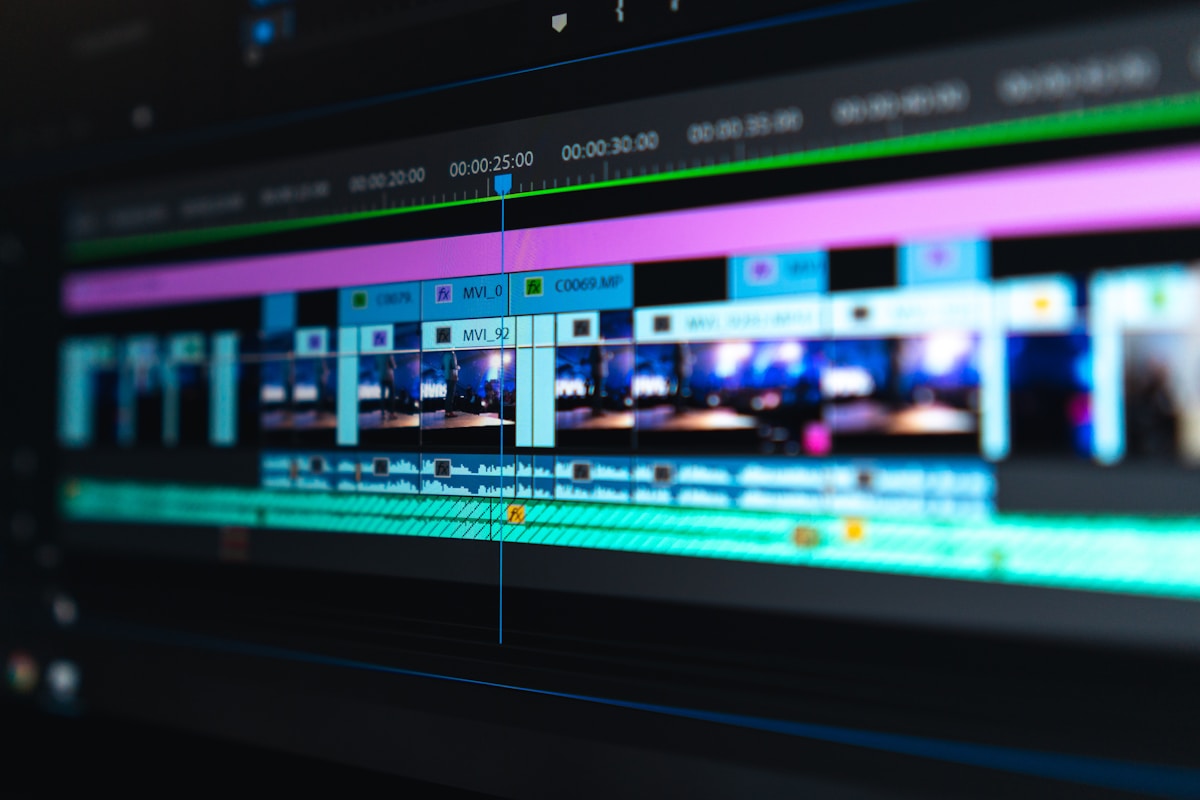
Best Free AI Video Editors With No Watermark (2026)
⚡ Quick Answer
Find the best free AI video editors with no watermark in 2026—clean exports for YouTube, TikTok, and Reels without paying a cent.
Get more content like this on Telegram!
Daily AI tips, notes & resources — free
Advertisement
The watermark problem with free video editors has been a real headache for creators. I've seen people post beautiful content ruined by a tool's logo slapped in the corner—not because they were cheap, but because they didn't know better options existed.
After testing about a dozen tools over the past month for YouTube Shorts and longer-form content, I found a handful that genuinely deliver no-watermark exports on their free plans. Some come with real AI editing features, not just basic cuts. Here's what actually works.
Why Watermarks Are Still a Problem in 2026
You'd think this would be solved by now, but plenty of tools—InShot free tier, CapCut mobile under certain conditions, and many AI generators—still slap watermarks on free exports. The business model makes sense from their side, but it's frustrating when you're starting out and can't afford subscriptions.
The good news: the no-watermark options have gotten better. According to TechCrunch, video creation tool adoption jumped 34% among solo creators in 2025, which pushed more competition into the free tier space. That's good for us.
The Best Free AI Video Editors With No Watermark
DaVinci Resolve (Free)
DaVinci Resolve's free version is, without exaggeration, the most capable free video editor that exists. No watermark, no time limit, 4K export, and a suite of AI tools that professional editors use on Hollywood productions.
The AI features in the free version include Magic Mask (AI-powered subject isolation), noise reduction, speed warp (AI-based slow motion), and automatic scene detection. These aren't demo features—they're the same ones in the paid Studio version, with a few advanced exceptions.
The learning curve is steep. I spent two days just navigating the interface before feeling comfortable. If you're editing a quick TikTok, DaVinci is overkill. For YouTube content 10 minutes or longer, it's worth learning.
CapCut (Desktop Free Tier)
CapCut's desktop version is the easiest-to-use AI video editor with a genuinely useful free tier. Auto-captions work well for English content, the AI background remover handles video (not just photos), and the text-to-video feature gives you short clip generation in the free plan.
The watermark situation on CapCut requires some care: the free tier exports without watermark on most projects, but if you use certain AI-generated templates or effects marked with a crown icon, those add a watermark. Check before exporting. The mobile app is more restrictive than the desktop version.
CapCut also has a TikTok connection that some creators find useful—direct upload and format optimization built in.
Kdenlive
Kdenlive is open-source, runs on Windows/Mac/Linux, and has zero restrictions. No watermark, no export limits, no subscription. It's added some AI-assisted features including noise suppression and basic scene detection.
It's not as polished as CapCut, and the AI features are modest compared to commercial tools. But for creators who want full control and no limits, Kdenlive is a solid choice. I use it for longer projects where I need fine-grained control over color grading.
ClipChamp (Microsoft Free Tier)
ClipChamp is built into Windows 11 and offers a surprisingly decent free tier. Auto-captions, basic transitions, text overlays, and 1080p export without watermark. The AI features are modest—mostly auto-caption accuracy—but the interface is clean and it syncs with OneDrive.
The limitation: 1080p max export on free tier. If you're shooting in 4K and want to publish in 4K, ClipChamp isn't your tool.
Runway ML (Limited Free)
Runway's free tier includes 125 credits for AI video generation and editing—things like AI background removal from video, inpainting, and motion tracking. Once you use the credits, the free tier becomes very restricted.
I include it because the AI features are genuinely impressive. If you occasionally need advanced AI video effects and don't need them constantly, the free credit allotment goes further than you'd expect.
OpenShot
Another open-source option with no restrictions. OpenShot is simpler than Kdenlive and better for beginners who want open-source without the learning curve. AI features are limited to basic noise reduction, but it handles most editing tasks reliably.
Comparison Table: Free AI Video Editors With No Watermark
| Tool | Watermark Policy | Max Export Quality | AI Features (Free) | Best For |
|---|---|---|---|---|
| DaVinci Resolve Free | None | 4K unlimited | Magic Mask, noise reduction, AI slow-mo, scene detect | YouTube, film, professional work |
| CapCut Desktop Free | None (except crown assets) | 4K (desktop) | Auto-caption, AI background remove, text-to-video (limited) | TikTok, Reels, quick edits |
| Kdenlive | None | Unlimited | Noise suppression, scene detection | Full control, open-source users |
| ClipChamp Free | None | 1080p | Auto-caption | Quick Windows edits, beginners |
| Runway ML Free | None | Varies | AI background remove, inpainting, motion track | Occasional AI effects |
| OpenShot | None | Unlimited | Basic noise reduction | Simple edits, beginners |
Where Each Tool Falls Short
DaVinci Resolve free locks some advanced collaboration features and certain noise reduction algorithms behind the paid Studio version ($295 one-time). For solo creators, you won't miss them. The interface also uses significantly more RAM than lighter editors—8GB minimum, 16GB recommended.
CapCut is owned by ByteDance (TikTok's parent company). There are ongoing privacy discussions about data handling, particularly relevant if you're editing content that includes personal or proprietary footage. If privacy is a concern for your use case, Kdenlive or DaVinci Resolve are better choices.
Kdenlive crashes more than I'd like on Windows. Save frequently. It's more stable on Linux.
Runway ML free credits expire—they don't roll over month to month. Use them or lose them.
AI Features Worth Paying Attention To
Auto-captioning is the AI feature I use most. CapCut and ClipChamp both do this reasonably well for free. DaVinci Resolve doesn't have native auto-captioning in the free version (it's in the paid Studio version), so I'll often caption in CapCut and do the rest of the edit in DaVinci.
AI background removal from video is genuinely useful for product demos and talking-head content. CapCut handles this well for most static backgrounds. For complex or moving backgrounds, Runway ML's AI tools do a cleaner job but burn through credits quickly.
For those creating content with AI-written scripts, the AI writing tips guide covers keeping AI-generated scripts sounding natural—worth reading before you record.
My Actual Workflow
For YouTube content under 5 minutes: CapCut desktop. Quick, clean interface, auto-captions work, no watermark.
For YouTube content over 10 minutes or anything I want to color grade properly: DaVinci Resolve. The learning investment paid off after about a week.
For clients who ask about their footage privacy: Kdenlive or DaVinci Resolve, since neither sends footage to external servers.
The best free AI tools guide covers more categories if you're building out a full content creation workflow beyond just video editing.
What About Mobile?
The mobile options are more restricted. CapCut mobile free exports without watermark for basic projects but caps export quality at 1080p and shows watermarks on certain AI-generated elements. VN Video Editor is genuinely watermark-free on mobile and underrated—it doesn't have strong AI features, but for mobile-first creators cutting footage quickly, it's clean and fast.
InShot free tier puts a watermark on exports unless you watch an ad to remove it per video—which works but gets annoying fast.
Quick Tips Before You Export
Always do a test export before your final render. Watermarks sometimes appear on the final render even when the preview looked clean—particularly with CapCut when you've mixed free and premium assets.
Check your export settings carefully. Several tools default to lower quality or compressed formats on free tiers even when they technically allow higher quality. DaVinci Resolve, for example, lets you choose between H.264, H.265, and ProRes on the free version—but the default setting isn't always the best quality option.
Conclusion
The free AI video editor landscape in 2026 is genuinely good. You don't need to pay for a subscription to produce clean, watermark-free content for YouTube, TikTok, or Reels. DaVinci Resolve is the best if you're willing to invest time learning it. CapCut desktop is the fastest path to a polished result without a watermark.
Pick the tool that matches your volume and complexity. If you're posting daily short-form content, CapCut's workflow is hard to beat. If you're building a YouTube channel with longer videos and care about production quality, DaVinci Resolve is worth every hour of the learning curve.
Try both for a week before committing to a workflow—you'll know quickly which one fits how you actually work.
Further Reading
- 5 Free AI Tools to Clean Up Noisy Audio (Remove Hiss, Echo, Wind)
- 5 Free AI Translation Tools That Beat Google Translate in 2026
- How to Translate YouTube Subtitles for Free Using AI (2026)
- The Ultimate Free AI Toolkit for Freelancers (No Credit Card Needed)
- Best Free AI Tools for Video Subtitles and Captions (2026)
- How to Create AI-Generated Album Cover Art (Free Tools 2026)
Advertisement
💬 DiscussionPowered by GitHub Discussions
Frequently Asked Questions

AiTechWorlds Team
✓ Verified WriterThe AiTechWorlds team is passionate about AI, technology, and education. We create high-quality, research-backed content to help you learn, grow, and succeed in the modern digital world.
Advertisement
Related Articles
5 Free AI Tools to Clean Up Noisy Audio (Remove Hiss, Echo, Wind)
Review of the best free AI audio cleanup tools for removing hiss, echo, and wind noise — with real test results comparing Adobe Enhance, Krisp, and Auphonic.

Best Free AI Background Remover Tools for Product Photos (2026)
Find the best free AI background remover tools for product photos in 2026—accurate cutouts, batch processing, and clean exports.

Free AI Business Name Generators With Domain Availability Check (2026)
Find the best free AI business name generator with domain availability check. Includes naming strategy tips and how to validate a name before registering.

7 Free AI Code Assistants Better Than GitHub Copilot Free Tier
Compare 7 free AI coding assistants that outperform GitHub Copilot's free tier—better context windows, more languages, and smarter completions.