
How to Secure Your Home Network: The Router Settings Most People Never Change
⚡ Quick Answer
Step-by-step guide to securing your home network — the critical router settings, WiFi configurations, and network monitoring tools that block attackers at the perimeter.
Get more content like this on Telegram!
Daily AI tips, notes & resources — free
Advertisement
How to Secure Your Home Network: The Router Settings Most People Never Change
My router sat untouched in its factory configuration for four years. I changed the WiFi password once when I moved in, and then never thought about it again. That's the default state for most home networks — and it's a much more significant security problem than most people realize.
Your router is the gateway between every device you own and the internet. A compromised router is catastrophically bad: the attacker sits between you and every website you visit, intercepting traffic before your browser's security protections have any chance to help. They can redirect your banking site to a fake version. They can monitor every device on your network. They can use your connection for illegal activity. And they can do all of this completely invisibly, for years.
I secured my home network properly about two years ago after a neighbor mentioned that our building's shared WiFi showed up as a "high-risk network" in a security audit at his workplace. That prompted me to take a serious look at what I'd been ignoring. This guide covers everything I changed, with step-by-step instructions you can follow this afternoon.
Understanding Your Home Network
Before changing settings, understanding what you're working with makes every decision clearer.
What Your Router Actually Does
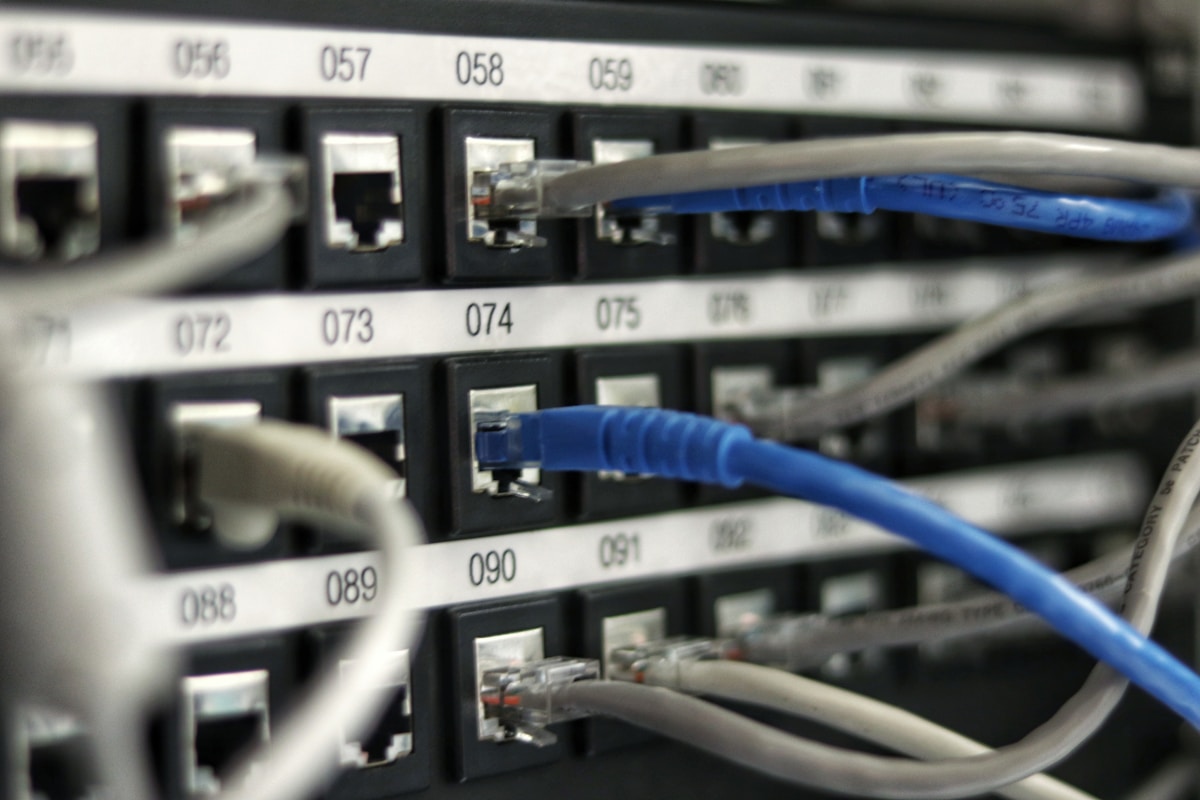
Your router performs three jobs: it connects your local network devices to each other, it manages the connection to your ISP, and it acts as a basic firewall filtering incoming traffic. Most consumer routers also include a WiFi access point in the same box.
The router runs its own operating system (firmware) on embedded hardware. Like any software, it can contain vulnerabilities. Unlike your laptop, it runs 24 hours a day, rarely gets updated, and most people never look at its settings after initial setup.
How to Access Your Router Admin Panel
Every router has a web-based admin interface accessible from your local network:
- Open a browser and navigate to your router's IP address — typically 192.168.1.1 or 192.168.0.1
- If those don't work, check the sticker on your router or type
ipconfig(Windows) orifconfig(Mac/Linux) in a terminal and look for "Default Gateway" - Log in with the admin credentials (if you've never changed them, check the router's sticker — and then immediately change them)
The Router Security Checklist
Work through this table in order. The first four items take under ten minutes combined and have the highest impact.
Router Security Settings Table
| Setting | Current Default | What to Change To | Impact |
|---|---|---|---|
| Admin username | admin | Custom username | Critical |
| Admin password | admin or printed on sticker | 20+ char unique password | Critical |
| WiFi password | Printed on sticker | 20+ char passphrase | Critical |
| Encryption type | WPA2 or mixed | WPA3 or WPA2/WPA3 | High |
| Remote management | Often enabled | Disabled | High |
| UPnP | Usually enabled | Disabled | High |
| WPS | Enabled | Disabled | High |
| Default DNS | ISP DNS | 1.1.1.1 or 9.9.9.9 | Medium |
| Guest network | Disabled | Enabled for IoT devices | High |
| Firewall | Basic | Enabled with SPI | Medium |
| Firmware | Factory version | Latest available | Critical |
Step 1: Change Default Admin Credentials
This is the single most important step. Factory default credentials are published publicly — a simple search for your router model reveals them. Any attacker who gains access to your network can immediately take control of your router with these defaults.
Navigate to Administration or System in your router settings, find the admin password field, and set a strong, unique password. Store it in your password manager. Some routers also let you change the admin username — do that too.
Step 2: Update Firmware
Before configuring anything else, check for firmware updates. A compromised router running latest settings is still less dangerous than an unpatched router. Find the firmware update section (usually under Administration, System, or Advanced) and check for updates. If auto-update is available, enable it.
The NIST National Vulnerability Database tracks known router vulnerabilities — you can search your router model to see what's been patched.
WiFi Configuration: Beyond the Default Settings
Most people set a WiFi password and never revisit these settings. There are several more decisions worth making.
Encryption Standards
The progression of WiFi security: WEP (broken, don't use) → WPA (broken, don't use) → WPA2 (acceptable) → WPA3 (current standard).
If your router supports WPA3, enable it. For backward compatibility with older devices, WPA2/WPA3 mixed mode is fine. WPA2-only with a strong password is still acceptable if your router doesn't support WPA3.
Never use WPA2-TKIP — this is an older cipher that has known weaknesses. Use WPA2-AES or WPA3-SAE.
WiFi Password Strength
Your WiFi password protects your entire network perimeter. Use at least 16 characters — a passphrase of four random words is strong and easier to type on devices that require it. Store it in your password manager.
Weak WiFi passwords can be attacked offline after capturing the handshake — no need to be actively connected to attempt guesses. A strong password makes this brute-force approach take thousands of years.
WPS: Disable It
WiFi Protected Setup sounds convenient — press a button on your router to connect a device without entering a password. But WPS has a fundamental design flaw that allows the PIN to be brute-forced in hours. Disable WPS in your router settings without exception. The convenience isn't worth the vulnerability.
I learned about the WPS vulnerability the hard way — or rather, fortunately I read about it before it affected me. A security researcher at a conference demonstrated gaining full network access through WPS in about twenty minutes with off-the-shelf tools.
Network Segmentation: Isolating Your Devices
Network segmentation is a professional security concept that every home network should implement in a basic form. The idea: group devices by trust level and prevent them from communicating across groups.
Why IoT Devices Are a Security Problem
Smart TVs, thermostats, cameras, speakers, and light bulbs often have poor security. Manufacturers ship them with default credentials, rarely provide long-term security updates, and collect telemetry. Security researchers regularly find serious vulnerabilities in popular smart home devices.
If a smart TV on your main network is compromised, it can be used as a platform to attack your laptop, access your network-attached storage, or intercept local traffic. Isolating it onto a separate network prevents this lateral movement.
Setting Up Guest Network Segmentation
Most modern routers support a guest network feature. Here's how to use it for security:
Main network: Computers, phones, tablets — devices you trust and that contain sensitive data
Guest/IoT network: Smart TVs, thermostats, speakers, cameras, game consoles — anything that doesn't need to communicate with your main devices
- In your router settings, find Guest Network or WLAN settings
- Create a second network with a different SSID and password
- Enable "AP Isolation" or "Client Isolation" if available — this prevents guest network devices from communicating with each other
- Ensure the guest network cannot access the admin interface
Connect all your smart home devices to the guest network. Your computers and phones remain on the main network. A compromised smart speaker now cannot reach your laptop.
Network Monitoring Tools
Knowing what's on your network and what it's doing is the next level of home network security.
Network Monitoring Tools Comparison
| Tool | Type | Cost | Best For | Difficulty |
|---|---|---|---|---|
| Fing | Mobile app | Free/Pro | Quick device inventory | Easy |
| GlassWire | Windows/Android | Free/Paid | Real-time traffic monitoring | Easy |
| Pi-hole | Self-hosted DNS | Free | Ad/tracker/malware blocking | Medium |
| Wireshark | Desktop | Free | Deep packet inspection | Hard |
| Firewalla | Hardware device | $109-$219 | All-in-one home security | Easy |
| pfSense | Router OS | Free | Advanced users, custom hardware | Hard |
For most home users, I recommend Fing for periodic audits (it shows every device on your network with device type, manufacturer, and IP) combined with Pi-hole if you're comfortable with a Raspberry Pi setup. Pi-hole blocks advertising networks, trackers, and known malware domains at the DNS level — before any request leaves your network.
I set up Pi-hole eighteen months ago and it now blocks roughly 15% of DNS requests on my network — requests that would otherwise reach tracking infrastructure and occasionally malicious domains.
Running a Network Audit
At least quarterly, scan your network to verify you know every connected device:
- Open Fing (mobile) or use your router's connected devices list
- Identify every device — name, IP, and MAC address
- Investigate any device you don't recognize
- Check if any devices are communicating with unexpected destinations
Unrecognized devices are a red flag. They could be a neighbor who guessed your password, a compromised device phoning home, or a visitor who connected and never disconnected.
DNS Security: The Overlooked Layer
DNS — the system that translates domain names to IP addresses — is a significant security layer most home users never configure. By default, your DNS queries go to your ISP's servers, which may log them and don't provide any malware filtering.
Switching to Secure DNS
Cloudflare's 1.1.1.1 and Quad9's 9.9.9.9 are free, privacy-respecting DNS services that offer meaningful security improvements over ISP defaults.
Quad9 specifically blocks DNS resolution for known malicious domains — if malware on your network tries to phone home to a command-and-control server, Quad9 blocks the lookup. It's a passive protection layer that requires no configuration beyond changing your DNS server.
To change DNS on your router (which applies to all network devices):
- Find DNS settings in your router admin panel (usually under Internet or WAN settings)
- Set primary DNS to 9.9.9.9 (Quad9) or 1.1.1.1 (Cloudflare)
- Set secondary DNS to 149.112.112.112 (Quad9 backup) or 1.0.0.1 (Cloudflare backup)
- Save and reboot the router
Advanced: Disabling Unnecessary Services
Routers come with several features enabled by default that most users don't need and that create unnecessary attack surface.
UPnP: Disable It
Universal Plug and Play lets devices on your network automatically configure port forwarding rules. It sounds convenient — your game console can automatically open the ports it needs. The problem: any device or malware on your network can also use UPnP to open inbound ports without your knowledge or consent.
Disable UPnP in your router settings. Most applications work fine without it. Gaming may occasionally require manually configuring specific port forwards, but the security tradeoff is worth it.
Remote Management: Disable It
Remote management lets you access your router's admin panel from outside your home network. Unless you have a specific reason to need this (managing a remote office router), disable it. Remote management has been exploited in multiple high-profile attacks to compromise home routers at scale.
Find this setting under Remote Access, Remote Management, or WAN Management and ensure it's disabled.
Further Reading
- Dark Web Explained: What It Is, What's On It, and Should You Worry?
- Mobile Security in 2025: The Settings On Your Phone That Are Leaking Data
- How to Spot a Phishing Email: The Red Flags That Saved My Accounts
- How to Start a Cybersecurity Career in 2025 (No Degree Required)
- AI and Cybersecurity: How Hackers Use AI (And How to Stop Them)
- How to Use GitHub Copilot to 5x Your Coding Speed
- MIT OpenCourseWare for Tech: The Best Free University Courses
- Clean Code Principles: Writing Code Your Future Self Will Thank You For
Advertisement
💬 DiscussionPowered by GitHub Discussions
Frequently Asked Questions

AiTechWorlds Team
✓ Verified WriterThe AiTechWorlds team is passionate about AI, technology, and education. We create high-quality, research-backed content to help you learn, grow, and succeed in the modern digital world.
Advertisement
Related Articles

AI and Cybersecurity: How Hackers Use AI (And How to Stop Them)
AI cybersecurity threats are evolving fast — deepfake fraud, AI-powered phishing, autonomous malware. Here's exactly how hackers use AI and the AI defense tools fighting back.

Antivirus in 2025: Do You Still Need It? (The Honest Answer)
Honest antivirus guide for 2025 — whether you actually need third-party antivirus, how Windows Defender compares, and which paid tools offer real extra protection.

VPN in 2025: Which Ones Actually Protect Your Privacy?
Discover the best VPN 2025 options that genuinely protect your privacy — honest reviews of NordVPN, ExpressVPN, ProtonVPN, and Mullvad with real limitations explained.
Bug Bounty Hunting: How to Make $10,000/Month Finding Vulnerabilities
The complete bug bounty guide for 2025 — learn how ethical hackers earn $10,000+ per month finding vulnerabilities on HackerOne, Bugcrowd, and Synack with proven strategies.