
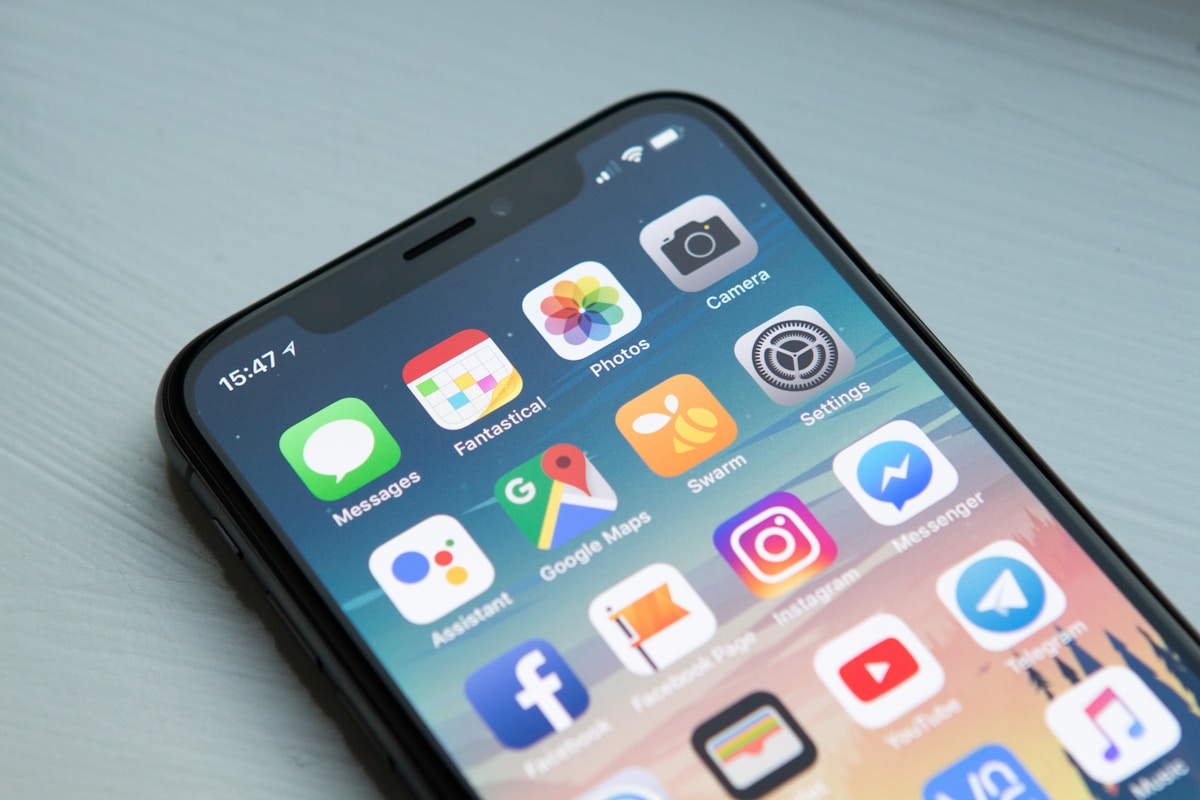
Mobile Security in 2025: The Settings On Your Phone That Are Leaking Data
⚡ Quick Answer
Essential mobile security tips for 2025 — the hidden settings leaking your data, app permission audits, and the tools that actually protect your smartphone.
Get more content like this on Telegram!
Daily AI tips, notes & resources — free
Advertisement
Mobile Security in 2025: The Settings On Your Phone That Are Leaking Data
My phone was betraying me and I had no idea. Not because it was hacked — nothing so dramatic. It was the settings I had left at defaults. An app I had installed two years ago still had access to my microphone. My location was broadcasting to a weather app around the clock. My cloud backup was syncing to a service I had forgotten existed, using a password I had reused from a data-breached account.
Mobile security in 2025 is less about sophisticated hackers targeting you personally and more about the quiet, continuous data leakage that happens through poorly audited settings, overpermissioned apps, and the privacy-hostile defaults that most smartphones ship with. The threats are real, but most of them are preventable with about thirty minutes of attention and a few permanent habit changes.
In this guide, I want to walk you through exactly which settings are leaking data on your phone right now, how to audit and tighten them, and which tools are worth using for ongoing protection. I will cover both iOS and Android since the risks and solutions differ in important ways between the two platforms.
For a broader foundation in digital self-defense, see our cybersecurity beginners guide and the full cybersecurity resource hub.
iOS vs Android: The Security Baseline
Before getting into specific settings, it helps to understand the structural differences between the two major mobile platforms. Neither is immune to security problems, but they have meaningfully different threat models.
Platform Security Comparison
| Feature | iOS (iPhone) | Android (Google Pixel / Stock) | Android (OEM — Samsung, etc.) |
|---|---|---|---|
| App store vetting | Stricter App Store review, lower malware risk | Google Play Protect scans, moderate risk | Same as stock Android |
| OS update speed | Immediate across all supported devices | Fast on Pixel, slower on older models | Often delayed 1-6 months by manufacturers |
| Permission granularity | Strong (approximate location, one-time access) | Strong on Android 12+ | Varies by manufacturer skin |
| Sideloading risk | Very limited, requires developer mode | Enabled by default, higher malware risk | Enabled by default |
| Background tracking | App Tracking Transparency required | Ad ID opt-out available, less enforced | Same as stock Android |
| Hardware security | Secure Enclave chip | Titan M chip (Pixel), varies on others | Varies by device |
| Privacy labels | Mandatory App Store nutrition labels | Limited privacy disclosures | Limited privacy disclosures |
| Encryption | Full disk encryption on by default | Full disk encryption on by default | Full disk encryption on by default |
The practical takeaway: iPhones have a simpler, more locked-down security posture that is more protective for average users with minimal configuration. Stock Android on a Pixel gives more control. Samsung and other OEM Android devices sit in a more complex middle ground where manufacturer software adds both features and attack surface.
The Settings That Are Leaking Your Data Right Now
I spent an evening going through my phone settings after reading a penetration tester's blog post about mobile data exposure. What I found was uncomfortable. Here is what to look for:
Location Services: The Biggest Offender
Location data is the most valuable and most over-shared data category on your phone. The defaults are designed for convenience, not privacy.
On iOS: go to Settings → Privacy & Security → Location Services. Go through every single app. Any app set to "Always" that does not genuinely need constant location access should be changed to "While Using" or "Never." Pay special attention to: social media apps, retail and shopping apps, games, and any app you installed more than six months ago and rarely open.
On Android: go to Settings → Location → App permissions. The same principle applies. Android 12+ introduced "approximate location" — grant this instead of precise location wherever possible. A weather app does not need your GPS coordinates to the meter; it needs your city.
My personal rule: only navigation, maps, and ride-sharing apps get "Always" location access. Everything else gets "While Using" at most.
Microphone and Camera Permissions
These are permissions that feel dramatic but are genuinely misused. Apps do not typically activate your microphone to spy on conversations (though it has happened), but they may use microphone access in ways you never anticipated — capturing audio snippets during ads, accessing the mic during background refresh, or using it as part of analytics SDKs bundled into the app.
Review every app with microphone or camera access. On iOS, a recent feature shows an orange dot (microphone active) or green dot (camera active) in the status bar. On Android 12+, you will see a camera or microphone icon in the top-right corner when an app accesses either.
Revoke microphone and camera access from any app that has no plausible reason to need them: delivery apps, retail apps, utility apps, most games.
Ad Tracking Identifiers
Both platforms assign your device an advertising identifier (IDFA on iOS, GAID on Android) that lets advertisers and data brokers build a profile of your behavior across apps and websites.
On iOS: Settings → Privacy & Security → Tracking — disable "Allow Apps to Request to Track." Also go to Settings → Privacy & Security → Apple Advertising and disable personalized ads.
On Android: Settings → Privacy → Ads — select "Delete advertising ID." On older Android versions, you can opt out of personalization. On Android 13+, you can delete the ID entirely.
App Permission Audit Checklist
I do this audit every three months. It takes about ten minutes and consistently surfaces at least one or two surprise permissions I had forgotten about.
Permission Audit Checklist
| Permission Category | Check For | Action If Suspicious |
|---|---|---|
| Location (Always) | Apps that do not need constant tracking | Downgrade to "While Using" or "Never" |
| Location (While Using) | Apps with no location-dependent features | Set to "Never" |
| Microphone | Apps not involved in voice, video, or audio | Revoke immediately |
| Camera | Apps not involved in photos, video, or scanning | Revoke immediately |
| Contacts | Apps not in communication/social categories | Revoke; contacts reveal your social network |
| Calendar | Apps beyond productivity/calendar apps | Revoke; reveals your schedule and activities |
| Health data | Non-health apps requesting activity or health | Revoke unless specifically authorized |
| Background App Refresh | All apps | Disable for apps you rarely use actively |
| Notifications | Apps sending marketing push notifications | Disable for non-essential apps |
| Clipboard access | Any app reading clipboard unexpectedly | Revoke; clipboard may contain passwords |
A quick note from my own experience: when I did this audit the first time, I found a flashlight app (installed in 2019) that had retained microphone, contacts, and location permissions. I had never consciously granted them — they had been auto-granted during a rushed install. That app was deleted.
Network Security on Your Phone
Your phone's network behavior creates exposure you may not have considered. These settings matter especially when you are away from your home network.
Wi-Fi Auto-Join and Known Networks
Your phone maintains a list of networks it will automatically join. This creates a "probe request" attack vector where a malicious actor can set up a hotspot with the same name as a network your phone trusts, causing it to connect automatically.
On iOS: Settings → Wi-Fi → tap the info icon on any saved network → disable "Auto-Join" for networks in public spaces (coffee shops, airports, hotels). On Android: tap and hold the saved network → Modify → disable Auto-reconnect.
Better practice: periodically clear your saved network list of public networks you no longer frequent.
DNS Privacy
By default, your DNS queries (every website you visit, every service your apps contact) are sent unencrypted to your carrier's DNS resolver. This is visible to your ISP and anyone monitoring the network.
Use an encrypted DNS provider. On iOS, you can install a DNS profile from Cloudflare (1.1.1.1 with Warp) or NextDNS. On Android (Android 9+), go to Settings → Network → Private DNS and enter dns.nextdns.io or 1dot1dot1dot1.cloudflare-dns.com.
This is one of the most impactful, underused privacy improvements you can make on any mobile device.
Mobile Security Tools Worth Using
I have tested most of the major mobile security tools. Here is my honest assessment of what provides genuine value versus what is mostly marketing.
Mobile Security Tools Comparison
| Tool | Platform | What It Actually Does | Cost | Worth It? |
|---|---|---|---|---|
| Cloudflare WARP (1.1.1.1) | iOS & Android | Encrypted DNS + lightweight VPN | Free / $2.99/month for WARP+ | Yes — DNS protection alone is worth it |
| NextDNS | iOS & Android | Encrypted DNS with ad/tracker blocking at DNS level | Free (300k queries/month) / $1.99/month | Yes — excellent for families and power users |
| ProtonVPN | iOS & Android | Full VPN with strict no-logs policy, Switzerland jurisdiction | Free tier / $4-10/month paid | Yes — most trustworthy free VPN option |
| Bitwarden | iOS & Android | Open-source password manager | Free / $10/year premium | Yes — essential, not optional |
| iVerify (iOS) | iOS only | Device health check, detects compromise indicators | $0.99 one-time | Yes — useful for high-risk users |
| Malwarebytes Mobile | Android | Malware scanning, privacy audit | Free / $2.99/month | Moderate — mostly valuable on Android |
| Privacy Cleaner (iOS) | iOS | Permission audit and privacy scoring | Free / freemium | Helpful for audits, not ongoing |
| Little Snitch (iOS) | iOS | Network monitor — shows which apps are phoning home | $9.99 | Yes — eye-opening for power users |
My daily stack: Bitwarden for passwords, ProtonVPN when on public networks, and NextDNS for always-on DNS filtering. That combination addresses the most common exposure vectors without draining battery or adding friction.
Securing Your Lock Screen and Authentication
The settings discussed so far assume an attacker cannot get past your lock screen. But physical access to an unlocked device erases most other protections. This section matters more than people think.
Lock Screen Exposure
Many people do not realize how much sensitive information is visible on their lock screen without unlocking the device. Notification previews can show message content, email subjects, and banking alerts.
On iOS: Settings → Notifications → Show Previews — change to "When Unlocked" rather than "Always." Go through individual apps in this same menu and disable lock screen previews for banking, messaging, and email apps.
On Android: Settings → Notifications → Sensitive notifications — disable lock screen notification content.
Biometrics vs PIN Security
I use Face ID for daily unlocking, but I disabled it when I traveled internationally last year. US Customs officers can legally request biometric unlock under current legal interpretations; they generally cannot compel a PIN under Fifth Amendment protections. It took me thirty seconds to disable Face ID before landing, and I re-enabled it afterward.
For your PIN, use at least a 6-digit numeric code. Better is an alphanumeric passcode of 8+ characters. The time-to-brute-force gap between a 4-digit PIN (10,000 combinations) and an 8-character alphanumeric code is enormous.
For more on how these practices fit into a broader personal security posture, visit our online safety resources and our cybersecurity career hub.
Further Reading
- Social Engineering Attacks: How Hackers Trick People Instead of Machines
- Your Data Was Breached: The Exact 7-Step Response Plan
- Password Manager Guide 2025: Why I Switched and Never Looked Back
- How to Secure Your Home Network: The Router Settings Most People Never Change
- How I Got My First CEH Certification Without Any IT Experience
- AI vs Human Jobs: Which Careers Are Actually Safe in 2025?
Advertisement
💬 DiscussionPowered by GitHub Discussions
Frequently Asked Questions

AiTechWorlds Team
✓ Verified WriterThe AiTechWorlds team is passionate about AI, technology, and education. We create high-quality, research-backed content to help you learn, grow, and succeed in the modern digital world.
Advertisement
Related Articles

AI and Cybersecurity: How Hackers Use AI (And How to Stop Them)
AI cybersecurity threats are evolving fast — deepfake fraud, AI-powered phishing, autonomous malware. Here's exactly how hackers use AI and the AI defense tools fighting back.
Antivirus in 2025: Do You Still Need It? (The Honest Answer)
Honest antivirus guide for 2025 — whether you actually need third-party antivirus, how Windows Defender compares, and which paid tools offer real extra protection.

VPN in 2025: Which Ones Actually Protect Your Privacy?
Discover the best VPN 2025 options that genuinely protect your privacy — honest reviews of NordVPN, ExpressVPN, ProtonVPN, and Mullvad with real limitations explained.
Bug Bounty Hunting: How to Make $10,000/Month Finding Vulnerabilities
The complete bug bounty guide for 2025 — learn how ethical hackers earn $10,000+ per month finding vulnerabilities on HackerOne, Bugcrowd, and Synack with proven strategies.